Guide
Do dual nozzle printers waste less filament?
Yes, when a print uses two filaments, and by less when it uses more. This page gives the measured numbers, explains where the remaining waste comes from, and lists the Bambu Studio and OrcaSlicer settings that reduce it.
Edited by 3D Printeray EditorsPublished Last verified 5 min read
In this section: Dual nozzle(16)
On this page (3)
.jpg)
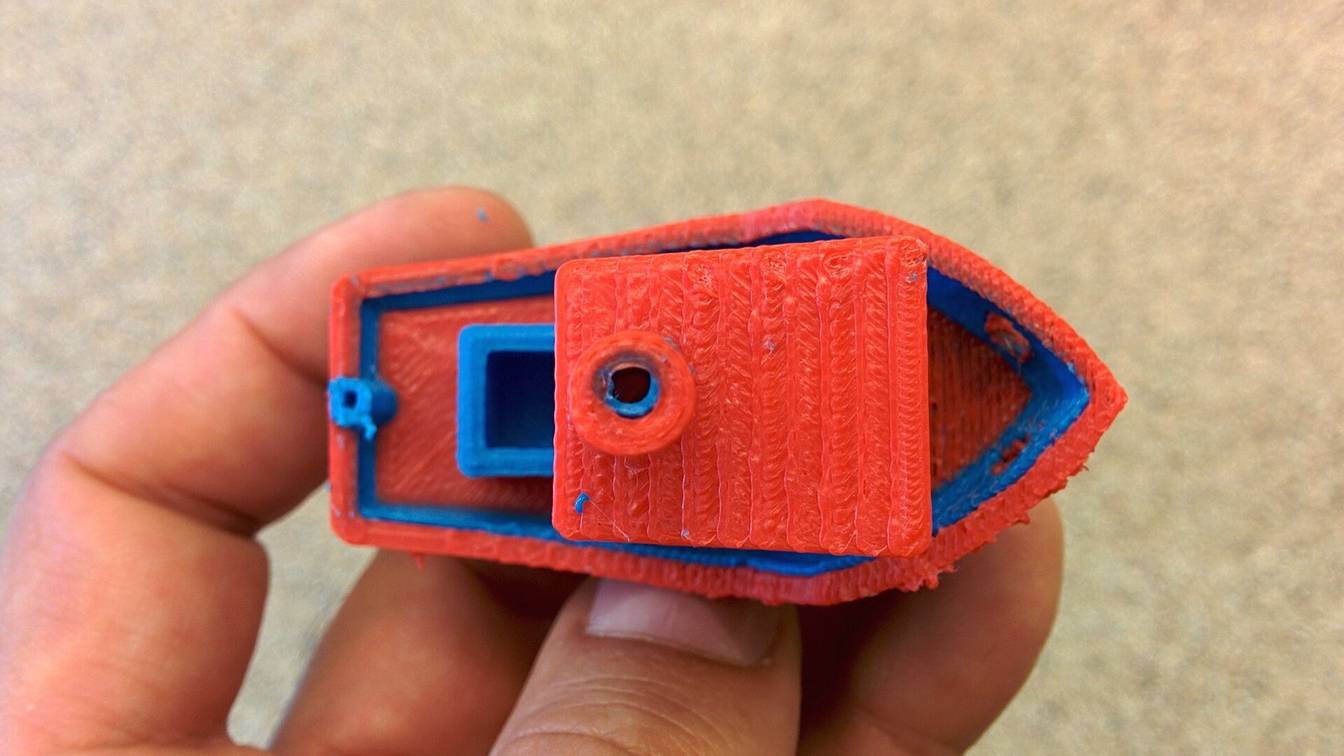
Yes: with two filaments, each stays loaded in its own nozzle, so a color change is a nozzle switch with no flush. In Notebookcheck’s X2D test, a 12 g multicolor Benchy left about 20 g of waste with both nozzles and about 70 g with one. With three or more filaments, each nozzle still flushes when it changes filament.
Do dual nozzle printers waste less filament?
Yes, mostly. A dual-nozzle printer flushes only when one nozzle changes filament, not when it switches nozzles. A two-filament print therefore loses almost nothing to flushing and wastes mainly the prime tower. With three or more filaments, each nozzle still flushes between its own filaments. The savings shrink but do not disappear.
Bambu Lab does not publish a waste percentage. Its H2D store page says only that “dual-nozzle printing reduces purge cycles in multi-color prints”, and the X2D page promises “far less waste”. Reviewers have weighed the waste:
| Test | Dual nozzle | Single nozzle with filament changes |
|---|---|---|
| Notebookcheck, X2D, multicolor 3DBenchy (12 g model) | About 20 g waste, nearly all prime tower; 2.7 hours | About 70 g waste, 52 g of it flushing; 5.8 hours |
| Tom’s Hardware, H2D vs P1P, two-color mermaid tails | 0.38 g flush (initial nozzle cleaning) plus 2.22 g prime tower | 6.54 g purge on a Bambu Lab P1P |
| Tom’s Hardware, H2D, five-color dragon | 108 g flush plus 120 g prime tower | Not tested |
Notebookcheck notes that it used standard settings and that the figures depend heavily on the model being printed.
Where the waste goes on a dual-nozzle printer
Two things still use filament:
- Flushing. Bambu Lab’s grouping wiki explains it: “the entire flushing amount comes from switching filaments from the same nozzle.” Every time a nozzle loads a different filament, it pushes the old one out into the purge chute. How much depends on the color pair: dark to light needs more than light to dark.
- Priming. After every nozzle switch, the printer prints a little on the prime tower. Bambu Lab’s H2D FAQ recommends a prime tower on dual-hotend prints, because the nozzle may carry residue and needs steady internal pressure before it prints on the model again. Notebookcheck turned priming off on the X2D and print time fell from 2.7 to 1.7 hours. Print quality dropped sharply, and Bambu Lab advises against it.
Switching nozzles does not flush the old filament. The idle nozzle cools and reheats on its own between turns, as the H2D dual nozzle page explains.
When a dual nozzle saves little or nothing
- More than two filaments on the same layers. The five-color dragon above still wasted 228 g. Each extra filament on a nozzle brings back flushing for that nozzle.
- Convenience mode. Bambu Studio’s Convenience mode groups filaments by the spools already in each AMS (Bambu Lab’s automatic spool changer) instead of by flush volume. Bambu Lab says it “may waste more filaments for flushing” than Filament-Saving mode.
- Filaments locked to one nozzle. On the H2D, TPU (flexible thermoplastic polyurethane) in the left nozzle locks out the right nozzle. Carbon-fiber-filled polyphthalamide and polyphenylene sulfide (PPA-CF, PPS-CF) print only from the left. If the restrictions push two filaments onto the same nozzle, they flush against each other as on a single-nozzle printer.
- Single-color prints. One filament means no filament changes, so a second nozzle saves nothing.
How do you reduce purge waste with dual nozzles?
Slice in Filament-Saving mode, then move spools so each AMS matches the Filament Grouping panel. After that, lower the flushing volume multiplier and flush into infill, supports or sacrificial objects. Shrink the prime tower, and orient or batch parts so fewer layers change filament. Every step works in Bambu Studio, and most also exist in OrcaSlicer.
- Use Filament-Saving mode. It is Bambu Studio’s default, picked from the menu on the Slice button. It puts the filaments that share the most layers and need the largest flushes on different nozzles. (Assigning filament to the left or right nozzle covers all the grouping modes.)
- Match the spools to the grouping. After slicing, check the Filament Grouping panel against each nozzle’s AMS. A filament grouped to one nozzle cannot be swapped for a spool on the other nozzle when you send the job, so move the spool instead. The Filament Track Switch can route any AMS slot to either nozzle.
- Regroup by hand if needed. Click “Regroup filament” in Filament Grouping, or pick Custom mode. Bambu Lab notes Filament-Saving mode only minimizes flushing, so it can produce more filament changes than a manual grouping.
- Lower the flushing volumes. Open Flushing Volumes in the Project Filaments section and set the Multiplier to 0.8 or 0.9. Bambu Lab says the defaults run slightly high and suggests test prints, because a value set too low shows as discolored layers. You can also edit a single from/to pair, and Re-calculate restores the defaults.
- Flush into the print. Turn on “Flush into objects’ infill” (watch out with light or transparent walls and few wall loops, where the mixed infill shows through). “Flush into objects’ support” is on by default. Both need the prime tower on. OrcaSlicer has the same two switches under Flush options.
- Add sacrificial objects. Select a part in Process > Objects and turn on “Flush into this object”. Bambu Lab’s example cube normally needed about 70 g of flush; printed next to flush objects, under 1 g went to waste. Use parts about as tall as the multicolor model, or they need fresh filament for the rest of their height.
- Shrink the prime tower. Uncheck Rib Wall to set a smaller Width, and lower the prime volume in Filament settings (moved there in Bambu Studio 2.0). In OrcaSlicer, turn on “No sparse layers” (releases after 2.4.2) so the tower is printed only on layers with a tool change.
- Orient so color changes sit low. The tower is printed up to the last layer with a filament change. Bambu Lab flipped one part so its changes were at the bottom, and the tower dropped from 14.76 g to 9.05 g.
- Cut the number of layers that change filament. In Bambu Lab’s single-nozzle example, raising layer height from 0.2 to 0.28 mm cut changes from 153 to 111 and waste from 83 g to 61 g. The same logic applies to every nozzle that flushes.
- Fill the plate. Nine copies of Bambu Lab’s cube wasted the same 83 g as one, because waste follows the filament changes per layer, not the number of parts. Parts with different stripe heights do the opposite: three traffic cones wasted 22 g printed separately and 72 g printed together.
If the waste is still high, slice the plate both ways and compare the totals Bambu Studio reports. The count of filaments per layer on each nozzle drives the figure, so the fix is usually fewer colors per nozzle, not a different setting. For leaks and strings from the idle nozzle, see stopping dual-nozzle ooze.
Sources
- Bambu Lab Wiki, Introduction to filament grouping strategy for dual nozzle printers (accessed October 12, 2026)
- Bambu Lab Wiki, Reduce waste during filament change (accessed October 12, 2026)
- Bambu Lab Wiki, Prime tower (accessed October 12, 2026)
- Bambu Lab Wiki, H2D FAQ (accessed October 12, 2026)
- Bambu Lab store, H2D (accessed October 12, 2026)
- Bambu Lab store, X2D (accessed October 12, 2026)
- Notebookcheck, Bambu Lab X2D in detail: Dual nozzle halves printing time and drastically reduces waste (Silvio Werner, June 10, 2026) (accessed October 12, 2026)
- Tom's Hardware, Bambu Lab H2D Review: For Elite Crafters (accessed October 12, 2026)
- OrcaSlicer Wiki, Flush options (accessed October 12, 2026)
- OrcaSlicer Wiki, Prime tower (accessed October 12, 2026)