How-to
Bambu Lab printers in Home Assistant: setup and dashboards
Home Assistant connects to Bambu Lab printers through Bambu Lab, a community integration you install from the Marketplace or HACS. Sign in with your Bambu Lab account, or enter the printer's IP address, serial number and access code for LAN mode. Printer controls on current firmware need LAN mode with Developer Mode.
Edited by 3D Printeray EditorsPublished Last verified 12 min read
In this section: Offline & LAN(18)
On this page (8)
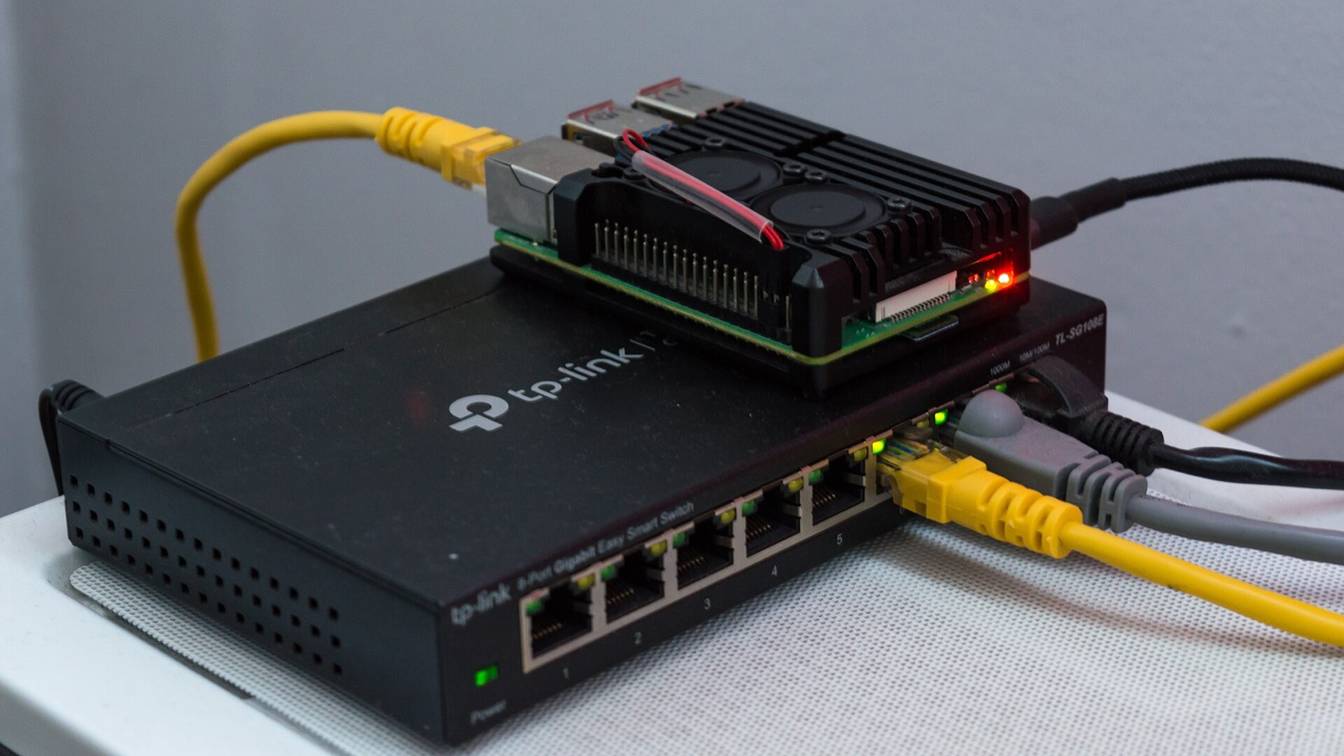

To add a Bambu Lab printer to Home Assistant, install the community Bambu Lab integration (greghesp/ha-bambulab) from the Marketplace, or from HACS (the Home Assistant Community Store) on Home Assistant 2026.10 and older. Then add it under Settings, then Devices & services. Sign in with your Bambu Lab account, or enter the printer’s IP address, serial number and access code.
Neither Bambu Lab nor the Home Assistant project makes the integration. It is an open-source project on GitHub under the MIT license, and Home Assistant says “nothing published in the Marketplace is tested, audited, or supported by the Home Assistant project.” This page follows the integration’s docs and code for version 2.2.26 and the 2.3.0 betas, checked on November 7, 2026.
How do you add a Bambu Lab printer to Home Assistant?
Install the Bambu Lab integration from Settings, then Marketplace on Home Assistant 2026.11 or later, or from HACS on older versions. Then add Bambu Lab under Settings, then Devices & services. Choose Bambu Lab cloud and sign in with your account, or choose Lan Mode and enter the printer’s IP address, serial number and access code.
| Connection | What you enter | Suits |
|---|---|---|
| Bambu Lab cloud | Account region, email or phone number, password, and a verification code if asked | Printers that stay bound to Bambu Cloud; adds print weight, length and cover image from your print history |
| Lan Mode | Printer IP address, serial number and access code | Printers in LAN Only mode, or setups with no Bambu Lab account in Home Assistant |
The integration’s code lists the A1, A1 mini, A2L, P1P, P1S, P2S, X1, X1 Carbon, X1E, H2C, H2D, H2D Pro, H2S and X2D. It needs Home Assistant 2025.1.1 or newer.
How to set up the Bambu Lab integration
- Open the Marketplace. On Home Assistant 2026.11 or later, go to Settings, then Marketplace. Accept the community-content warning the first time. HACS became this built-in Marketplace in 2026.11; on 2026.10 or older, open HACS instead.
- Install Bambu Lab. Search for Bambu Lab or ha-bambulab, open the repository and select Install. It is in the default catalog, so you do not add a custom repository.
- Restart if asked. When Home Assistant needs a restart to load the integration, a repair under Settings, System, Repairs says so and can restart it for you.
- Add the integration. Go to Settings, then Devices & services, select Add integration and search for Bambu Lab. The printer may already show under Discovered, because the integration listens for its network announcements.
- Choose the connection. Pick Bambu Lab cloud or Lan Mode. A printer in LAN Only mode must use Lan Mode: the cloud option “obviously does not support printers explicitly set to Lan Only Mode.”
- Cloud: sign in and pick the printer. Choose your account region, enter your email or phone number and password, then any verification code Bambu Lab sends. Select the printer. The next screen tests a local connection to the printer, which the camera, print history and timelapse features need.
- LAN: enter the printer’s details. Enter the serial number, IP address and access code. Use the serial number (SN) from the printer’s device settings or Bambu Studio, not the 3DP-… name the printer displays.
- Check the device. Open Settings, Devices & services, Bambu Lab and select the printer. Print status, progress, temperatures and AMS (Automatic Material System) trays should show values. If they read Unavailable, see why the integration is not working.
On the cloud path, the local-connection screen also offers “Connect directly to printer mqtt”. This reads the printer over MQTT, the local messaging protocol it uses for status and commands. Sensors then keep running through Bambu Cloud outages, but the integration warns that “some controls will be unavailable” in this hybrid mode. The docs reserve the advanced options for non-standard setups and call Disable SSL verification “unsafe”.
If you used HACS before 2026.11, you do nothing: Home Assistant says everything you downloaded with HACS “stays installed, and keeps getting updates” in the Marketplace.
Does the Bambu Lab Home Assistant integration work in LAN mode?
Yes. Choose Lan Mode during setup and enter the printer’s IP address, serial number and access code; no Bambu Lab account is needed. On firmware with Bambu Lab’s authorization control, Home Assistant reads every sensor in LAN mode. Controls such as temperatures, pause and stop work only after you turn on Developer Mode.
The integration’s docs name X1 Carbon firmware 01.08.05.00, P1 firmware 01.08.02.00 and A1 firmware 01.05.00.00 as the versions that added these restrictions. Bambu Lab’s integration guide confirms status still flows: “MQTT status pushes for tools like Home Assistant” are not affected, while “movement, temperature, fans, AMS settings, and calibration” need authorized access “in both cloud mode and normal LAN mode.”
| Setup on authorization firmware | Sensors | Controls |
|---|---|---|
| Bambu Lab cloud | All | “The majority of the write functionality will no longer work” |
| Lan Mode, Developer Mode off | All | Chamber light only |
| Lan Mode, Developer Mode on | All | All controls, including temperatures, fans, pause, resume and stop |
Developer Mode has a cost. Bambu Lab says it “will not allow the printer to be connected to Bambu Cloud”, so the Bambu Handy app and remote monitoring stop. Bambu Lab also warns that it “will open the MQTT channel, live stream, and FTP, giving you full control over your printer and its network security.” Steps for each printer series are in how to turn on Developer Mode, and LAN Only setup is in the LAN-only guide.
Some sensors fill in only with a cloud login or files on the printer’s storage. Print weight, print length and cover image come “with Bambu credentials or when loaded from printer”. On the H2D (firmware 01.03.00.00 and later), H2S (01.02.00.00 and later) and P2S, loading them from the printer means turning on “Store Sent Files on External Storage” in the printer’s Print Options and inserting a USB drive or SD card.
Where to find the access code, IP address and serial number
- Access code and IP address: on the printer’s LAN Only page. That is Settings, then LAN Only on H2, P2S and X series printers; Settings, then WLAN on the P1P and P1S.
- Serial number: in the printer’s device settings, or in Bambu Studio.
- A new access code: refreshing the code or a factory reset generates a new one. The integration then raises an “Access Code Rejected” repair until you enter the new code.
Give the printer a DHCP reservation (a fixed address the router always hands it) so its IP address does not change. A Lan Mode setup connects only to the address you entered.
How the integration uses MQTT
The integration runs its own MQTT client, so setup asks for no MQTT broker. In Lan Mode it logs in to the printer’s MQTT server as user bblp with the access code as the password; Bambu Lab lists TCP 8883 for LAN mode MQTT. Cover images, print history and skipping objects use FTP file transfer to the printer (TCP 990 and 50000 to 50100) and need a USB drive or SD card in the printer. If Home Assistant sits on another VLAN (a separate network segment), allow those ports to the printer’s IP address; the full port list is in Bambu Lab LAN mode not working.
Why does the Bambu Lab integration say authentication failed?
“Authentication Failed” means Bambu Lab’s cloud stopped accepting the integration’s saved login, for example after its token expires. Reconfigure the printer’s entry with fresh Bambu Lab credentials. If the printer itself refuses the stored access code, the repair reads “Access Code Rejected” instead: read the new code on its screen.
To reconfigure, go to Settings, then Devices & services, open Bambu Lab and select Configure on the printer’s entry.
| Message | What it means | Fix |
|---|---|---|
| “Access Code Rejected” (repair) | The printer refused the stored code, which “usually means the code was regenerated, for example by a factory reset” | Enter the code shown on the printer. For cloud setups, the integration fetches the new code from Bambu Cloud and reloads on its own |
| “Access denied by Bambu Lab cloud.” | Bambu Lab refused the sign-in | Check the email or phone number, password and region |
| “Authentication Failed” (repair) | The saved cloud login no longer works | Reconfigure with fresh credentials |
| “Cloudflare has blocked the connection attempt.” | Bambu Lab’s web protection refused the request, sometimes as a temporary block | Wait and try again, or set the printer up in Lan Mode |
| “Failed to connect. Access denied - check access code.” | Lan Mode: wrong access code | Re-enter the code from the LAN Only page |
| “Failed to connect. Connection refused - check IP address.” | Lan Mode: nothing answers at that address | Check the IP address on the printer |
| “Failed to connect. Connection was closed by printer - check serial number.” | Lan Mode: wrong serial number | Use the SN from device settings, not the 3DP-… name |
| “Verification code expired. New code requested.” | The emailed or texted code timed out | Enter the new code Bambu Lab sends |
Cloud sign-in: region, password and 2FA
Region. Pick China only for an account on Bambu Lab’s China service. The integration sends China accounts to Bambu Lab’s .cn servers and every other choice (Asia Pacific, Europe, North America, Other) to the .com servers.
Accounts without a password. The cloud option “doesn’t support passwordless social media accounts”. If you signed up through a social login, set a password in the Bambu Handy app. Tap the person icon at the bottom right, then Account Security, then Change Password. Then sign in to the integration with your email and that password.
Two-factor authentication (2FA). The integration supports 2FA accounts. When Bambu Lab’s 2FA endpoint rejects it, a verification code goes to your email or phone instead; enter that code when prompted.
On version 2.2.26, a 2FA login could still fail after you entered the code, because Bambu Lab moved a sign-in endpoint (issue #2136). The fix shipped in v2.3.0-beta1 on November 1, 2026. Until a stable release carries it, install the beta or use Lan Mode, which needs no account. To get the beta from the Marketplace, open the repository’s device under Settings, Devices & services, Marketplace. Enable its Pre-release entity (off by default), then turn the switch on.
Why is the Bambu Lab integration not working?
Start with the repairs list under Settings, then System, then Repairs. The integration names most of its problems there, and each one below has a fix.
| What you see | Cause | Fix |
|---|---|---|
| Controls do nothing; “MQTT Encryption Enabled” repair | Authorization firmware without Developer Mode: “Only the light can be controlled” | Turn on LAN Only and Developer Mode, then set the printer up in Lan Mode |
| “Hybrid Connection Blocks Control” repair | A cloud-linked printer reached through local MQTT; this “blocks setting temperatures and reprinting from history” | Turn off the direct printer MQTT connection, or move to Lan Mode with Developer Mode |
| “Live View Disabled” repair, or no camera image | Live view is off in the printer’s settings | Turn on live view on the printer (LAN Only Liveview on H2 and X series); see the LAN mode camera |
| “No USB or SD Card Detected” repair; no cover image | FTP features need external storage | Insert a card or USB drive, and on newer firmware turn on “Store Sent Files on External Storage” |
| Every entity Unavailable; Online sensor off | Home Assistant cannot reach the printer: it is off, its IP address changed, or a firewall blocks TCP 8883 | Check the printer’s IP address, reserve it in the router, and allow the ports above |
| “Authentication Failed” or “Access Code Rejected” repair | Login or access code problem | See authentication failed |
If none of these fit, open an issue on the integration’s GitHub issue tracker. The maintainers ask for a diagnostics file and debug logs with every bug report. Press Force Refresh Data in the device’s Diagnostic section, then select Download Diagnostics on the device page. Turn on debug logging from the integration’s page. For a failure during setup, add this to configuration.yaml and restart Home Assistant:
logger:
  default: info
  logs:
    custom_components.bambu_lab: debug
How do you build a Bambu Lab dashboard in Home Assistant?
Use the Bambu Lab cards that ship with the integration. Edit a dashboard, add a card and search for Bambu. Pick the Print Status, Print Control, AMS or Spool card, then choose your printer or AMS in the card editor. The separate ha-bambulab-cards repository is not needed once the integration is installed.
- Open the dashboard and select the edit button in the top right.
- In a Sections view, select the add button in a section; in other views, select Add card at the bottom right.
- Choose By card and search for Bambu.
- Pick a card and select the printer, AMS or spool in its editor. Save, then select Done to leave edit mode.
| Card | What it shows | Card editor options |
|---|---|---|
| Bambu Lab AMS Card | Each AMS tray’s filament, the active tray, and remaining filament for Bambu filament when enabled in the slicer | Card title, custom sensors, AMS selection, card style, shown types |
| Bambu Lab AMS Graphic Card | Rendered spools for the AMS, AMS 2 Pro and AMS HT (added in v2.3.0-beta1) | AMS, filament labels |
| Bambu Lab Print Control Card | Pause, resume and stop, print speed and object skipping for one printer | Printer |
| Bambu Lab Print Status Card | A graphical status view of one printer | Printer |
| Bambu Lab Spool Card | The external spool | Spool selection, shown types |
The integration registers the cards on dashboards managed in the UI. If you run dashboards in YAML mode, add the resource yourself:
lovelace:
  mode: yaml
  resources:
    - url: /bambu_lab/ha-bambulab-cards.js
      type: module
For a ready-made layout, the integration’s docs point to WolfWithSword’s dashboard configurator. It does not use these cards and needs other custom cards installed.
A Bambu Lab P1S dashboard
A P1S dashboard can use the Print Status Card, the AMS Card and standard cards for the P1S sensors: print progress, remaining time, current layer, nozzle and bed temperature, fans, and the AMS humidity and temperature. The P1S reports no chamber temperature; the integration lists that sensor for P2, X1 and H2 printers only. The P1S camera image appears only when the integration has the printer’s IP address. On P1 firmware 01.08.02.00 or later, most controls, including the Print Control Card’s buttons, stop working unless the printer runs Lan Mode with Developer Mode.
How to get a notification when a Bambu Lab print finishes
Build an automation that starts on the integration’s Print finished trigger and sends a message to your phone. Your phone needs the Home Assistant Companion app with notifications allowed.
- Create the automation. Go to Settings, then Automations & scenes, and select Create automation.
- Add the trigger. Under When, select Add trigger, then Device. Pick the printer and choose Print finished.
- Add the action. Under Then do, select Add action, pick your phone’s notify entity as the target and choose Send a notification message.
- Write the message and save. Enter a message such as “The print is done” and select Save.
The same automation in YAML works for every Bambu Lab printer you have, because it listens for the integration’s event instead of one device. Replace notify.my_phone with your phone’s notify entity:
alias: "Bambu Lab print finished"
triggers:
  - trigger: event
    event_type: bambu_lab_event
    event_data:
      type: event_print_finished
actions:
  - action: notify.send_message
    target:
      entity_id: notify.my_phone
    data:
      title: "Print finished"
      message: "{{ trigger.event.data.name }} has finished printing."
Some older setups give the phone its own action instead of a notify entity: notify.mobile_app_ followed by the phone’s device ID. Call that action with the same message and no target.
For other alerts, change type to event_print_started, event_print_canceled, event_print_failed (X1 only, per the docs) or event_printer_error. The last one fires on an HMS error, the printer’s Health Management System alert, and also carries code, error and url (the Bambu Lab wiki page for the error). Put {{ trigger.event.data.code }}: {{ trigger.event.data.error }} in the message to show the error code and text.
Sources
- ha-bambulab on GitHub, README (Bambu Lab integration for Home Assistant, MIT license) (accessed November 7, 2026)
- ha-bambulab documentation (GitHub source), Integration overview (Bambu Lab authorization control) (accessed November 7, 2026)
- ha-bambulab documentation (GitHub source), Installation (accessed November 7, 2026)
- ha-bambulab documentation (GitHub source), Setup (accessed November 7, 2026)
- ha-bambulab documentation (GitHub source), Entities (accessed November 7, 2026)
- ha-bambulab documentation (GitHub source), Device Triggers (accessed November 7, 2026)
- ha-bambulab documentation (GitHub source), Frontend overview (Bambu Lab cards) (accessed November 7, 2026)
- ha-bambulab documentation (GitHub source), AMS Card (accessed November 7, 2026)
- ha-bambulab documentation (GitHub source), Issues (diagnostics and debug logging) (accessed November 7, 2026)
- ha-bambulab on GitHub, Release v2.2.26 (September 12, 2026) (accessed November 7, 2026)
- ha-bambulab on GitHub, Release v2.3.0-beta1 (November 1, 2026) (accessed November 7, 2026)
- ha-bambulab on GitHub, Issue #2136: Bambu Cloud MFA reauthentication fails (accessed November 7, 2026)
- ha-bambulab source on GitHub, translations/en.json (setup errors and repair messages) (accessed November 7, 2026)
- ha-bambulab source on GitHub, pybambu/const.py (supported printer models, print status states) (accessed November 7, 2026)
- ha-bambulab source on GitHub, coordinator.py (bambu_lab_event and access code handling) (accessed November 7, 2026)
- ha-bambulab source on GitHub, pybambu/bambu_client.py (local MQTT login) (accessed November 7, 2026)
- ha-bambulab source on GitHub, pybambu/utils.py (China region servers) (accessed November 7, 2026)
- ha-bambulab source on GitHub, manifest.json (SSDP discovery) (accessed November 7, 2026)
- ha-bambulab source on GitHub, hacs.json (minimum Home Assistant version) (accessed November 7, 2026)
- ha-bambulab source on GitHub, frontend/ha-bambulab-cards.js (bundled dashboard cards) (accessed November 7, 2026)
- ha-bambulab-cards on GitHub, README (accessed November 7, 2026)
- HACS, HACS and the Marketplace (accessed November 7, 2026)
- Home Assistant, Marketplace integration (accessed November 7, 2026)
- Home Assistant, 2026.11 release notes (November 4, 2026) (accessed November 7, 2026)
- Home Assistant, Notifications integration (accessed November 7, 2026)
- Home Assistant, Send a notification message action (notify.send_message) (accessed November 7, 2026)
- Home Assistant, Automation triggers (accessed November 7, 2026)
- Home Assistant, Dashboard cards (adding cards to your dashboard) (accessed November 7, 2026)
- Home Assistant Companion Docs, Notifications introduction (accessed November 7, 2026)
- Bambu Lab Wiki, Third-party integration with Bambu Lab products (updated March 18, 2026) (accessed November 7, 2026)
- Bambu Lab Wiki, How to enable Developer Mode on Bambu Lab printers (accessed November 7, 2026)
- Bambu Lab Wiki, How to enable LAN Mode on Bambu Lab printers (updated November 5, 2026) (accessed November 7, 2026)
- Bambu Lab Wiki, Printer Network Ports (updated October 15, 2026) (accessed November 7, 2026)
- Bambu Lab Wiki, P1P/P1S and AMS Firmware Release History (access code refresh) (accessed November 7, 2026)
- Bambu Lab Blog, Firmware update introducing new authorization control system (January 16, 2025) (accessed November 7, 2026)