How-to
Bambu Lab camera in LAN mode: live view and streams
Yes, the camera works in LAN-only mode, in Bambu Studio but not in Bambu Handy. X1, P2S, H2 and X2D printers need the LAN mode liveview switch and stream RTSPS on port 322. P1 and A1 printers need no switch and send JPEG frames on port 6000.
Edited by 3D Printeray EditorsPublished Last verified 10 min read
In this section: Offline & LAN(18)
On this page (6)
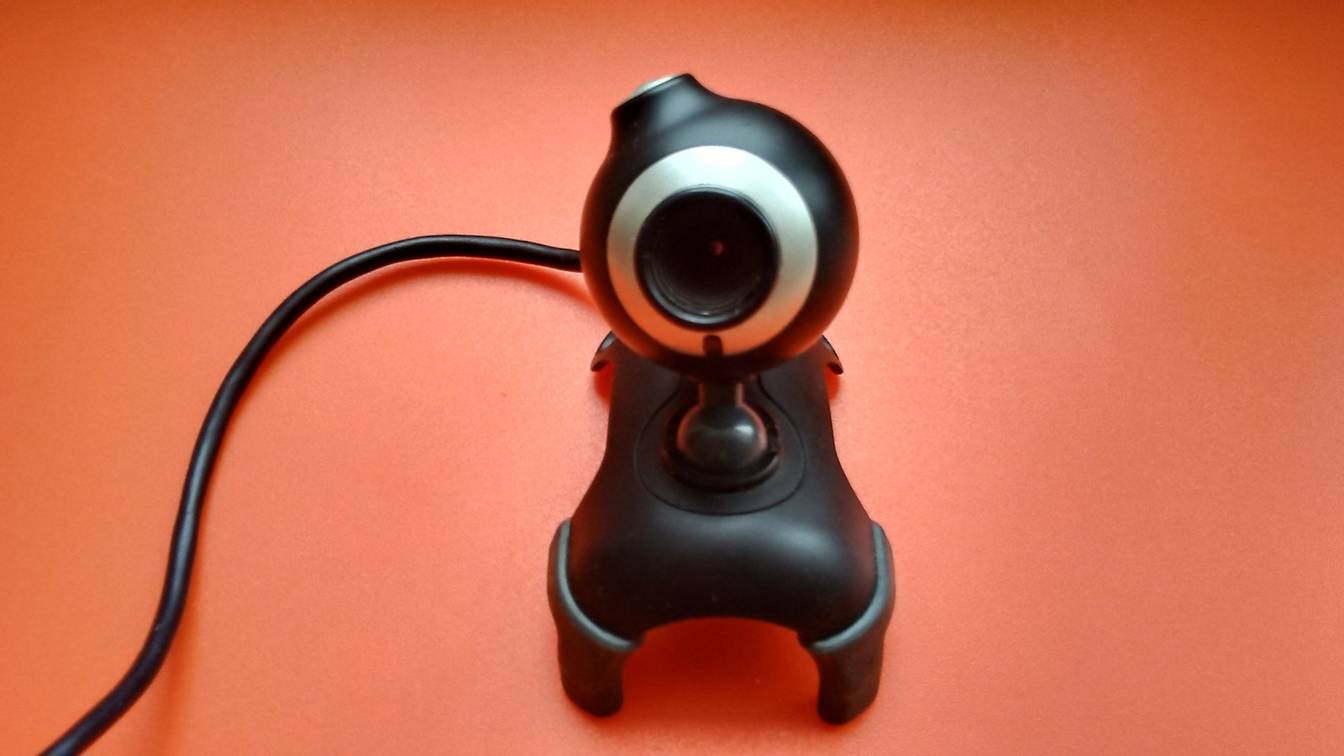

The Bambu Lab camera works in LAN-only mode, in Bambu Studio. On an X1, P2S, H2 series or X2D, turn on LAN mode liveview on the printer’s LAN Only page. A P1 or A1 needs no switch and shows video once Bambu Studio connects with the access code. Bambu Handy shows nothing, because the app does not work in LAN mode.
LAN mode setup itself is in how to run a Bambu Lab printer in LAN-only mode, and network faults are in Bambu Lab LAN mode not working. This page follows Bambu Lab’s wiki and the ha-bambulab project as of November 7, 2026.
Does the Bambu Lab camera work in LAN mode?
Yes. Bambu Lab’s port list includes a “LAN mode video” port, and Bambu Studio shows the live view over your local network once it is connected with the printer’s access code. X1, P2S, H2 series and X2D printers also need the LAN mode liveview switch turned on. Bambu Handy and viewing from outside your network need the cloud.
| Printer | Liveview switch | Local stream | Port | Camera, per Bambu Lab |
|---|---|---|---|---|
| A1, A1 mini | None | JPEG frames over TLS | 6000 | A1: “Low Rate Camera (up to 1080P)” |
| H2 series | LAN mode liveview | RTSPS (RTSP over TLS) | 322 | H2S: 1920 × 1080, 30 fps |
| P1P, P1S | None | JPEG frames over TLS | 6000 | P1S: 1280 × 720, 0.5 fps |
| P2S | LAN mode liveview | RTSPS | 322 | 1920 × 1080, 30 fps |
| X1, X1 Carbon, X1E | LAN mode liveview | RTSPS | 322 | X1 Carbon: 1920 × 1080 |
| X2D | LAN mode liveview | RTSPS | 322 | 1920 × 1080, 30 fps |
Bambu’s port list gives LAN mode video as “322/6000” without a per-model split. Its P1 troubleshooting page names 6000 for the P1. The community OpenBambuAPI documentation and the ha-bambulab source code put the X1, P2S, H2 series and X2D on RTSPS (Real Time Streaming Protocol video inside TLS encryption) at port 322. Both put the A1 and P1 on port 6000.
Where the switch is. On H2 series, P2S and X series printers the switch sits on the LAN Only page under Settings. Bambu’s LAN mode guide says to turn on LAN Only mode there, then “choose whether to enable LAN mode liveview according to your needs.” The same guide, and ha-bambulab, also call it LAN Only Liveview. The X1 got the switch in firmware 01.06.00.00 (August 2023), whose notes put it under Settings, then General.
P1 and A1 have no switch. Bambu’s steps for these printers list none, so a Bambu Lab P1S in LAN mode shows its camera in Bambu Studio as soon as it connects. For the A1, Bambu says that once connected “the Live View camera will be displayed in Bambu Studio.”
The switch does not need LAN Only mode. ha-bambulab’s setup guide says it is “not necessary to enable LAN mode generally” to turn on LAN Only Liveview. The switch “simply enables the RTSP stream to be available locally”. The cloud camera in Bambu Studio and Bambu Handy keeps working.
Frame rates. The Bambu Lab P1S spec sheet lists a “Low Rate Camera 1280 x 720/0.5fps”, one frame every two seconds. The A1 sheet says “up to 1080P” with no frame rate, while OpenBambuAPI describes the A1 and P1 port 6000 stream as 1280 × 720 JPEG images. Bambu gives 30 fps as the H2S live view camera’s hardware maximum.
How to turn on the Bambu Lab camera in LAN mode
- Update the firmware. On an X1, LAN liveview needs firmware 01.06.00.00 or later. Offline update steps are in the LAN-only guide.
- Turn on LAN Only. Open the LAN Only page in Settings on X1, P2S, H2 series and X2D printers. A P1 has the option under Settings, then WLAN. An A1 has it on page 3 of Settings. Note the access code on the same page.
- Turn on LAN mode liveview. Switch it on from the LAN Only page of an X1, P2S, H2 series or X2D. Skip this step on a P1 or A1.
- Connect Bambu Studio. On the Device page, pick the printer with the lock icon and enter the access code.
- Start the live view. Bambu’s guide then says to turn on “LAN Only Liveview” to view the printer live screen in Bambu Studio. A P1 or A1 shows the camera once connected.
- Check the network if the view stays blank. Bambu Studio must reach TCP 322 or 6000 on the printer. “Missing LAN IP of printer” means discovery failed. Work through the camera checks.
How do you view a Bambu Lab camera stream outside Bambu Studio?
Bambu Lab offers two ways. Bambu Handy shows the camera in cloud mode only. Go Live in Bambu Studio restreams it through an ffmpeg.sdp file that OBS or VLC can open, but not on P1 or A1 printers. Third-party tools such as go2rtc and Home Assistant can also open the RTSPS stream of an X1, P2S, H2 series or X2D.
Go Live in Bambu Studio (official)
Bambu’s streaming guide says Go Live works on every model “except the P1 Series, A1 Series, and A2L.”
- Start the stream. On the Device page, select the printer, click the Camera Setting icon at the top right of the video panel and toggle Go Live. The first time, Bambu Studio installs its virtual camera tool.
- Find ffmpeg.sdp. Choose Help, then Show Configuration Folder in Bambu Studio and open the
cameratoolssubfolder. - Open it in OBS. Add a Media Source and untick “Local File”. In the Input field, enter
file:C:/Users/[username]/AppData/Roaming/BambuStudio/cameratools/ffmpeg.sdpon Windows orfile:/Users/[username]/Library/Application Support/BambuStudio/cameratools/ffmpeg.sdpon macOS. Set the FFmpeg options toprotocol_whitelist=file,udp,rtp. Bambu says the picture should appear within a minute. - Or open it in VLC. Add ffmpeg.sdp to the VLC playlist.
Only one printer streams at a time: “Bambu Studio supports only a single virtual camera.” Closing Bambu Studio does not stop the stream, because the tool keeps running in the background. Bambu’s page does not say whether Go Live works in LAN-only mode.
The printer’s RTSPS stream (X1, P2S, H2 series, X2D)
With LAN mode liveview on, these printers serve this address:
rtsps://bblp:ACCESS_CODE@PRINTER_IP:322/streaming/live/1The username is always bblp and the password is the access code from the printer’s screen. The address comes from the community OpenBambuAPI documentation, and ha-bambulab builds the same URL from the one the printer reports. OpenBambuAPI found that with liveview off, an H2S or H2D closes port 322 and reports the stream as “disable”.
Bambu Lab, not a public certificate authority, issues the printer’s certificate. Players that verify certificates therefore refuse the connection. go2rtc skips that check when the URL uses an IP address. For a hostname, use its rtspx:// prefix instead. A minimal go2rtc config:
streams:
  bambu: rtsps://bblp:[email protected]:322/streaming/live/1
preload:
  bambu: "video"
preload (go2rtc 1.9.11 and later) opens the stream as soon as go2rtc starts, not when someone first watches. Other apps can then play go2rtc’s copy at rtsp://GO2RTC_HOST:8554/bambu instead of connecting to the printer.
P1 and A1: no standard stream
P1 and A1 printers serve no RTSP stream. OpenBambuAPI documents an encrypted connection on port 6000 that takes a custom login packet with bblp and the access code, then sends one JPEG image at a time. Because of that login step, ordinary video players cannot read the feed. ha-bambulab can, and shows the images in Home Assistant.
Why is the Bambu Lab camera not working in Home Assistant?
Check LAN mode liveview first on X1, P2S, H2 series and X2D printers. On a P1 or A1, check that ha-bambulab has the printer’s IP address and access code. Next, look for a changed IP address or a hostname where the IP address should be. Too many viewers and Home Assistant’s default video player also break the RTSPS feed.
Home Assistant has no official Bambu Lab integration. The camera comes from ha-bambulab, a community integration installed through HACS (the Home Assistant Community Store). Setup is covered in Bambu Lab in Home Assistant. In cloud mode, a working camera in Bambu Studio proves nothing about Home Assistant: the ha-bambulab maintainer says “the video feed Bambu Studio uses is completely independent of the RTSP feed the printer exposes locally.”
| What you see | Printers | Cause | Fix |
|---|---|---|---|
| “Access Code Rejected” repair notice | All | The access code changed, for example after a factory reset | Read the new code on the printer and reconfigure the integration |
| Black image with a red exclamation mark, no camera entity, or a “Live View Disabled” notice | X1, P2S, H2 series, X2D | LAN mode liveview is off, so the printer reports the stream as disabled | Turn on LAN mode liveview on the printer |
| Camera worked, then stopped | All | The printer got a new IP address | Reserve its address in the router, then reconfigure the integration |
| No camera entity | P1, A1 | Set up through Bambu Cloud without the printer’s IP address and access code, or setup never read the printer model | Reconfigure with the IP address and access code; if the model shows as unknown, remove and re-add the integration |
| State says streaming, but the picture stays black or drops | X1, P2S, H2 series, X2D | The printer’s RTSPS server copes badly with repeated connections | Use go2rtc with preload (below) and reboot the printer |
| TLS certificate error in the log | X1, P2S, H2 series, X2D | The integration was set up with a hostname | Use the printer’s IP address |
Check the integration’s switches. ha-bambulab adds a Camera switch to the printer’s configuration entities, on by default. A P1 or A1 also gets an “Image sensor camera” switch that shows the camera as an image entity instead. The maintainer says some users “have had better success switching back to the image sensor ‘camera’.”
Developer Mode is not a camera fix. ha-bambulab’s documentation says read functions, which only take data from the printer, “will continue to work, regardless of firmware version”. Developer Mode restores control after Bambu’s authorization firmware (X1 01.08.05.00, P1 01.08.02.00, A1 01.05.00.00). Bambu’s own notice says Developer Mode “will open the MQTT channel, live stream, and FTP”. Yet ha-bambulab lists only the liveview switch as a camera requirement, plus the IP address and access code on a P1 or A1.
Making the RTSPS camera reliable in Home Assistant
The ha-bambulab maintainer says the X1’s RTSP support “has never worked properly” and that the P2S runs “basically the same firmware”. His workaround is go2rtc in its own container, which keeps a single connection to the printer. He found “the very first rtsp connection on the printer post-boot seems to be much more reliable”, and that the stream “always works after the reboot”.
- Preload the stream. Use the go2rtc config shown above.
- Turn off the integration’s Camera switch. Home Assistant then stops opening extra connections to the printer.
- Point Home Assistant at go2rtc. Add
go2rtc:withurl: http://GO2RTC_HOST:1984to configuration.yaml and restart Home Assistant. - Add a Generic Camera. Set its stream source to
rtsp://GO2RTC_HOST:8554/bambu. The maintainer reports Home Assistant then plays it over WebRTC (browser video) with near-zero latency.
Ports and viewer limits
The Home Assistant host must reach the printer on TCP 322 (X1, P2S, H2 series, X2D) or 6000 (P1, A1). Allow those ports if the printer sits on another VLAN (a separate network segment). Bambu caps viewers:
- The X1E FAQ says live streaming allows “a maximum of 4 client connections.”
- P1 remote liveview in cloud mode supports at most 2 clients.
- On an X1, too many streaming clients trigger Health Management System (HMS) error HMS_0500-0100-0002-0001, “The media pipeline is malfunctioning”. Bambu’s fix is to keep one client.
Close any Bambu Studio window, Bambu Handy session or dashboard you are not watching.
Why is my Bambu Lab A1 camera offline?
In LAN-only mode, Bambu Handy cannot reach an A1 at all, so the app shows no camera by design. In Bambu Studio, an offline A1 camera points to the network first: check that Studio has found the printer’s IP address and can reach TCP port 6000. If the network checks out, inspect the camera and its cable.
- “Missing LAN IP of printer” or a LAN error code. Discovery is failing or a firewall blocks the connection. Work through the camera checks.
- Error 1 or -48 in Bambu Studio. Bambu’s live view guide says 1 means Bambu Studio and Bambu Handy have hit the remote access limit, and -48 means too many video connections. Close other viewers.
- No camera in Home Assistant. ha-bambulab needs the A1’s IP address and access code. The A1 has no liveview switch to turn on.
- Hardware. Bambu Lab’s wiki has no A1 camera-offline troubleshooting page. Its A1 and A1 mini camera replacement guides list physical damage to the camera or cable, and a camera LED that no longer lights, as signs of a failed camera. On the A1 mini, power the printer off, remove the front motor cover and check that the camera’s white connector sits firmly.
Sources
- Bambu Lab Wiki, How to enable LAN Mode on Bambu Lab printers (updated November 5, 2026) (accessed November 7, 2026)
- Bambu Lab Wiki, Printer Network Ports (updated October 15, 2026) (accessed November 7, 2026)
- Bambu Lab Wiki, Live View / Camera Feed Troubleshooting (accessed November 7, 2026)
- Bambu Lab Wiki, P1 series WIFI/BT/LIVEVIEW troubleshooting (accessed November 7, 2026)
- Bambu Lab Wiki, Streaming video of Bambu Printer (updated October 13, 2026) (accessed November 7, 2026)
- Bambu Lab Wiki, How to enable Developer Mode on Bambu Lab printers (accessed November 7, 2026)
- Bambu Lab Wiki, X1/X1C Firmware Release History (OTA 01.06.00.00) (accessed November 7, 2026)
- Bambu Lab Wiki, P1P/P1S and AMS Firmware Release History (P1P 01.03.00.00) (accessed November 7, 2026)
- Bambu Lab Wiki, X1E FAQ (accessed November 7, 2026)
- Bambu Lab Wiki, HMS_0500-0100-0002-0001: The media pipeline is malfunctioning (accessed November 7, 2026)
- Bambu Lab Wiki, P2S FAQ (accessed November 7, 2026)
- Bambu Lab Wiki, H2S FAQs (accessed November 7, 2026)
- Bambu Lab Wiki, X2D FAQs (accessed November 7, 2026)
- Bambu Lab, P1S technical specifications (PDF) (accessed November 7, 2026)
- Bambu Lab, A1 Technical Specification (PDF) (accessed November 7, 2026)
- Bambu Lab, Quick Start Guide for X1-Carbon Combo (PDF, specification table) (accessed November 7, 2026)
- Bambu Lab Wiki, A1 Live View Camera Replacement Guide (accessed November 7, 2026)
- Bambu Lab Wiki, Live View Camera Replacement Guide - A1 mini (accessed November 7, 2026)
- ha-bambulab (community Home Assistant integration), docs: Setup (accessed November 7, 2026)
- ha-bambulab, docs: Integration overview (Bambu Lab Authorization Control) (accessed November 7, 2026)
- ha-bambulab, docs: Entities (Cameras) (accessed November 7, 2026)
- ha-bambulab source, pybambu/utils.py (RTSP URL with bblp and access code) (accessed November 7, 2026)
- ha-bambulab source, pybambu/models.py (camera type per printer model) (accessed November 7, 2026)
- ha-bambulab source, translations/en.json (camera switches and repair notices) (accessed November 7, 2026)
- ha-bambulab issue #1627, P2S camera unreliable in Home Assistant (maintainer comments, October to November 2025) (accessed November 7, 2026)
- ha-bambulab issue #1911, Camera not showing (maintainer comments, 2026) (accessed November 7, 2026)
- ha-bambulab issue #2045, X1C camera streaming but snapshot fails (maintainer comment, July 2026) (accessed November 7, 2026)
- ha-bambulab issue #850, Only 6 printers' cameras show (maintainer comments, 2025) (accessed November 7, 2026)
- ha-bambulab issue #1798, Camera stream fails if configured using hostname (December 2025) (accessed November 7, 2026)
- ha-bambulab issue #1699, P1S camera sensor missing (maintainer comments, November 2025) (accessed November 7, 2026)
- ha-bambulab issue #386, P1P/P1S camera not showing in LAN only mode (maintainer comments on IP address and access code, January 2024) (accessed November 7, 2026)
- OpenBambuAPI (community documentation), video.md (accessed November 7, 2026)
- OpenBambuAPI (community documentation), tls.md (accessed November 7, 2026)
- Home Assistant, go2rtc integration (accessed November 7, 2026)
- Home Assistant, Generic Camera integration (accessed November 7, 2026)
- go2rtc (GitHub), README: RTSP server on port 8554 (accessed November 7, 2026)
- go2rtc (GitHub), RTSP source docs (rtspx:// prefix) (accessed November 7, 2026)
- go2rtc (GitHub), Streams docs (preload, new in v1.9.11) (accessed November 7, 2026)
- go2rtc source (GitHub), pkg/tcp/dial.go (TLS check skipped for IP addresses) (accessed November 7, 2026)