How-to
How to update a Bambu Lab printer's firmware offline
Download your printer's .zip package from Bambu Lab's firmware download page, copy it unchanged to a FAT32 microSD card or USB drive, and choose Update Offline on the printer's screen. The same package updates a connected AMS, and the older packages on that page let you roll back.
Edited by 3D Printeray EditorsPublished Last verified 8 min read
In this section: Offline & LAN(18)
On this page (8)
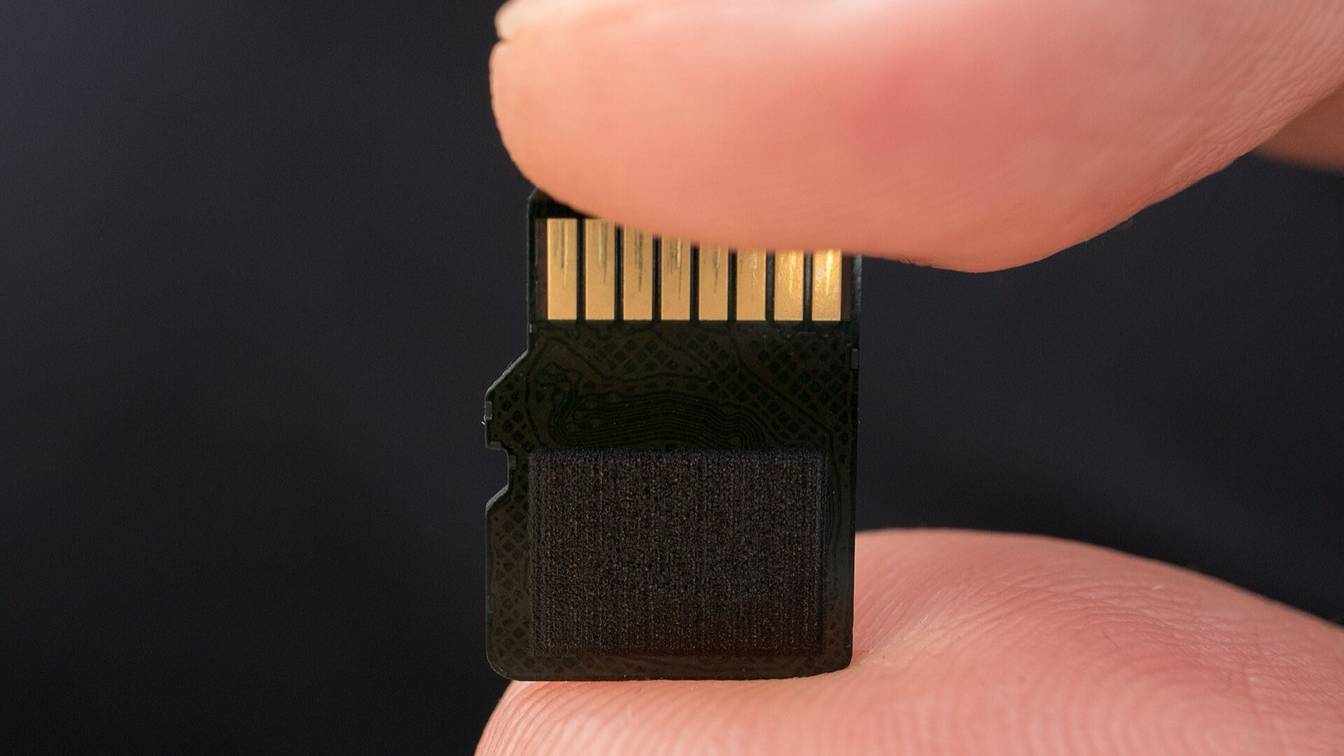

To update a Bambu Lab printer offline, copy its .zip package from Bambu Lab’s firmware download page to a FAT32 microSD card or USB drive without renaming or unzipping it. Then choose Settings > Firmware > Update Offline, or Setting > General > Firmware Version > Update Offline on the X1 series. By Bambu Lab’s figures the job takes 20 to 30 minutes, and the printer restarts by itself.
The X1, P1 and A series take a microSD card; the H2 series, P2S and X2D take a USB drive. This page follows Bambu Lab’s documentation as of November 7, 2026. Menu names change between firmware versions, so match each step to your screen.
How do you update Bambu Lab firmware without internet?
You update a Bambu Lab printer without internet by installing an offline package from a memory card or USB drive. Download your model’s package on any computer and copy it unchanged to the card or drive. Insert it and choose Update Offline in the printer’s firmware settings. The printer installs the update and restarts itself.
How to update Bambu Lab firmware offline, step by step
- Check the firmware version. Open Settings > Firmware on the printer (Setting > General > Firmware Version on the X1, X1 Carbon and X1E). Each model has a minimum version for offline updates, listed in the table below. Below it, the printer has no offline update, and Bambu Lab says to update online first.
- Download the package. On a computer with internet, open your model’s firmware download page (links below) and click Download. You get a single .zip file.
- Format the card or drive in the printer. Bambu Lab’s microSD guides say the printer supports FAT32 only and recommend formatting the card in the printer; on the P1 and A1 series that is Settings > SD Card > Format. On the H2 series, P2S and X2D, format the USB drive under Settings > USB Storage > Format External Storage. Formatting erases the card or drive. A microSD card that is already FAT32 can skip this step.
- Eject the card or drive. On the P1 and A1 series, choose Settings > SD Card > Eject first, because their card slots are not hot-swappable. On the H2 series, P2S and X2D, choose Settings > USB Storage > Eject. On the X1 series, press the card to release it.
- Copy the .zip to the root. Put the file at the top level of the card or drive, not inside a folder. Do not rename or unzip the file. Bambu Lab says either one makes the update fail.
- Open Update Offline. Reinsert the card or drive and go to Settings > Firmware > Update Offline. On the X1, X1 Carbon and X1E, go to Setting > General > Firmware Version and tap Update Offline in the lower-right corner.
- Pick the version and wait. Select the version from the card or drive. Keep the power on until the printer restarts by itself. Bambu Lab warns against turning it off during the update.
- Restart and calibrate. Bambu Lab’s P1 update guide recommends turning the printer off for 5 seconds, turning it back on and running a full calibration after any firmware update.
Offline update for the X1C, P1S, A1, H2D and other models
Every series Bambu Lab documents updates the same way. What changes is the media, the menu and the oldest firmware that has the offline function.
| Printer (alphabetical) | Media | Menu path | Minimum firmware for offline update | Time Bambu Lab gives |
|---|---|---|---|---|
| A1, A1 mini | microSD card | Settings > Firmware > Update Offline | 01.04.00.00 | About 20 minutes |
| A2L | microSD card | Settings > Firmware > Update Offline | Not stated | About 20 minutes |
| H2C, H2D, H2D Pro, H2S | USB drive | Settings > Firmware > Update Offline | Not stated | 20 to 30 minutes |
| P1P, P1S | microSD card | Settings > Firmware > Update Offline | 01.07.00.00 | About 20 minutes |
| P2S | USB drive | Settings > Firmware > Update Offline | Not stated | 20 to 30 minutes |
| X1, X1 Carbon | microSD card | Setting > General > Firmware Version > Update Offline | 01.08.02.00 | About 30 minutes |
| X1E | microSD card | Setting > General > Firmware Version > Update Offline | 01.01.02.00 | About 30 minutes |
| X2D | USB drive | Settings > Firmware > Update Offline | Not stated | 20 to 30 minutes |
Bambu Lab adds these notes by model, including three upgrades that need a stop at an intermediate version:
- Bambu Lab P1S and P1P. Below 01.09.01.00, install the “Bridge Firmware” 01.09.01.00 offline first, then any newer version. The bridge package is on the P1 download page.
- Bambu Lab X1E. On 01.01.02.00 or earlier, install the helper firmware 01.01.50.02 offline first, then 01.02.00.00 or later. Bambu Lab says online updates are not affected.
- Bambu Lab X1 and X1 Carbon with an AMS 2 Pro or AMS HT. Below 01.09.00.00, go through 01.08.50.32 first. The steps are in the AMS (Automatic Material System) section below.
- Bambu Lab A1 and A1 mini. Going straight from 01.04.00.00 or earlier to 01.08.01.00 can leave garbled text on the screen. Bambu Lab’s fix is to run the offline update again or connect the printer to the network.
- Bambu Lab H2D and the other H2 models. Bambu Lab’s H2 guide uses the H2D as its example and says the steps are the same for the H2S and H2C. The printer formats drives under 2 TB to FAT32. Format a larger drive to exFAT on a computer. Drives over 1 TB take the printer longer to recognize.
- Bambu Lab H3C. Its wiki has a firmware release history but no offline update guide as of November 7, 2026. The firmware download page has no H3C entry yet.
Where do you download Bambu Lab offline firmware?
Bambu Lab posts offline packages on its firmware download page, with one page per printer under bambulab.com/en/support/firmware-download/. Each page offers the newest package as a .zip file and older versions under Previous releases. The file name carries the version, such as offline-ota-p001_v01.12.00.00 for X1 firmware 01.12.00.00.
| Printer (alphabetical) | Download page |
|---|---|
| A1 | firmware-download/a1 |
| A1 mini | firmware-download/a1-mini |
| A2L | firmware-download/a2l |
| H2C | firmware-download/h2c |
| H2D | firmware-download/h2d |
| H2D Pro | firmware-download/h2d-pro |
| H2S | firmware-download/h2s |
| P1P, P1S | firmware-download/p1 |
| P2S | firmware-download/p2s |
| X1, X1 Carbon | firmware-download/x1 |
| X1E | firmware-download/x1e |
| X2D | firmware-download/x2d |
Offline packages can trail the over-the-air releases. On November 7, 2026, the H2D download page offered 01.03.00.00. The H2D release history already listed 01.04.00.00 (August 26) and 01.04.20.00 (November 3). The H2S page offered 01.02.00.00 against 01.03.00.00 in its history. The P2S hotfix 01.01.03.00 never appeared on the P2S download page.
If the version you need is not posted, the only other route is an online update. That needs the printer on Wi-Fi and bound to a Bambu Lab account for the duration, as covered in LAN mode vs cloud. Whether a given release is worth installing is covered in the Bambu firmware controversy.
How do you update AMS firmware offline?
Connect the AMS to the printer and run the printer’s offline update. Bambu Lab’s firmware FAQ says the offline package contains “all the required firmwares” for both the printer and the AMS, and the download page offers no separate AMS packages. The AMS is updated in the same run as the printer.
Four cases need extra steps:
- AMS 2 Pro or AMS HT on an older P1. Below P1 firmware 01.08.00.00, disconnect the AMS 2 Pro and AMS HT and update the printer from the card. Then reconnect them and run the same update again.
- AMS 2 Pro or AMS HT on an older X1. Below X1 firmware 01.09.00.00, disconnect them and update to 01.08.50.32 from the card. Then reconnect them and update to the latest version.
- A1 or A1 mini on 01.06.00.00 or earlier. Bambu Lab says an offline upgrade fails with an AMS, AMS 2 Pro or AMS HT connected, so disconnect them first.
- AMS Hub added later. If the printer was updated before the AMS Hub was connected, Bambu Lab says to run the offline update again with the hub connected.
If the printer updates but the AMS does not, Bambu Lab’s P1 troubleshooting says to update the printer with the AMS disconnected, then connect the AMS and update again. If the AMS still fails, Bambu Lab suspects the AMS cable or the AMS mainboard. More fixes are in Bambu Lab firmware update stuck or failed.
Bambu Lab publishes no separate offline procedure for the AMS lite. The FAQ’s line about “the AMS” names no model.
Bambu firmware update from SD card: the printer does not see the file
When Update Offline shows no package, check these:
- The card is not FAT32. Windows formats microSD cards over 32 GB as exFAT by default, and Bambu Lab says the printer supports FAT32 only. Format the card in the printer, then copy the package again.
- The file is in a folder, renamed or unzipped. It must sit at the root of the card or drive as the original .zip. If your computer shows a folder of files instead of one .zip, it was extracted. Download the package again.
- The firmware is below the offline minimum. Below the versions in the table above, the printer has no offline update function.
- The package is for another model. The A1 and A1 mini, and each H2 model, have their own download pages.
- The card was pulled without ejecting. On the P1 and A1 series, eject from the menu every time. Bambu Lab’s P1 update guide says a card removed while the printer runs can become corrupted, and that replacing it should solve update problems.
- The USB drive is very large. Bambu Lab says drives over 1 TB take the printer longer to recognize.
If the printer finds the file but the update stalls or fails, see Bambu Lab firmware update stuck or failed.
Can you downgrade Bambu Lab firmware offline?
Yes. Bambu Lab’s offline update guides list rolling back to an older version as one of their uses. Download the older package from Previous releases on your model’s download page and select it under Update Offline. Bambu Handy can also install a historical version, but Bambu Lab says Handy is not available in LAN mode.
You can only roll back to versions posted for offline use. The oldest packages posted on November 7, 2026 were 01.08.02.00 for the X1 series, 01.07.00.00 for the P1 series and 01.04.00.00 for the A1 and A1 mini. Bambu Lab’s downgrade guide says to run a calibration after a downgrade. On the P2S, its release notes for 01.01.01.00 add one more step: after upgrading to or rolling back from that version, redo the motor noise-cancellation calibration.
Sources
- Bambu Lab Wiki, Offline firmware update (updated June 2, 2026) (accessed November 7, 2026)
- Bambu Lab Wiki, Update firmware from microSD card - X1/X1C (updated March 12, 2026) (accessed November 7, 2026)
- Bambu Lab Wiki, Update firmware from microSD card - X1E (accessed November 7, 2026)
- Bambu Lab Wiki, Firmware Upgrade via microSD Card - P1 Series (accessed November 7, 2026)
- Bambu Lab Wiki, Firmware Upgrade via microSD Card - A1/A2L (updated July 6, 2026) (accessed November 7, 2026)
- Bambu Lab Wiki, Firmware Upgrade via microSD Card - A1 mini (accessed November 7, 2026)
- Bambu Lab Wiki, Offline Firmware Update Guide for H2 Series (updated April 27, 2026) (accessed November 7, 2026)
- Bambu Lab Wiki, X2D/P2S Offline Firmware Update Guide (updated September 28, 2026) (accessed November 7, 2026)
- Bambu Lab, Firmware Download, X1 Series (with the list of printers) (accessed November 7, 2026)
- Bambu Lab, Firmware Download, FAQ (accessed November 7, 2026)
- Bambu Lab, Firmware Download, H2D (accessed November 7, 2026)
- Bambu Lab, Firmware Download, H2S (accessed November 7, 2026)
- Bambu Lab, Firmware Download, P2S (accessed November 7, 2026)
- Bambu Lab, Firmware Download, X1E (accessed November 7, 2026)
- Bambu Lab Wiki, X1/X1C Firmware Release History (accessed November 7, 2026)
- Bambu Lab Wiki, X1E Firmware Release History (accessed November 7, 2026)
- Bambu Lab Wiki, P1P/P1S and AMS Firmware Release History (accessed November 7, 2026)
- Bambu Lab Wiki, A1 Firmware Release History (accessed November 7, 2026)
- Bambu Lab Wiki, A1 mini Firmware Release History (accessed November 7, 2026)
- Bambu Lab Wiki, H2D Firmware Release History (updated November 3, 2026) (accessed November 7, 2026)
- Bambu Lab Wiki, H2S Firmware Release History (updated November 6, 2026) (accessed November 7, 2026)
- Bambu Lab Wiki, P2S Firmware Release History (accessed November 7, 2026)
- Bambu Lab Wiki, H3C Firmware Release History (accessed November 7, 2026)
- Bambu Lab Wiki, P1 series supports AMS 2 Pro and AMS-HT firmware via microSD upgrade (accessed November 7, 2026)
- Bambu Lab Wiki, X1 series supports AMS 2 Pro and AMS-HT firmware via microSD upgrade (accessed November 7, 2026)
- Bambu Lab Wiki, P1 Series Upgrade Failed (accessed November 7, 2026)
- Bambu Lab Wiki, Firmware update guide for P1 Series (accessed November 7, 2026)
- Bambu Lab Wiki, FAQ for Printing from micro SD Card (accessed November 7, 2026)
- Bambu Lab Wiki, Firmware Downgrade (accessed November 7, 2026)
- Bambu Lab Wiki, How to enable LAN Mode on Bambu Lab printers (updated November 5, 2026) (accessed November 7, 2026)