How-to
Bambu Lab printer shows offline: causes and fixes
A Bambu Lab printer shows offline in Bambu Handy or Bambu Studio when it loses its link to Bambu Cloud, which can happen while its Wi-Fi still works. The usual causes are LAN Only mode, a printer logged out or bound to another account or region, a cloud outage, weak 2.4 GHz signal, or a router that blocks Bambu's servers or time sync.
Edited by 3D Printeray EditorsPublished Last verified 12 min read
In this section: Offline & LAN(18)
On this page (9)
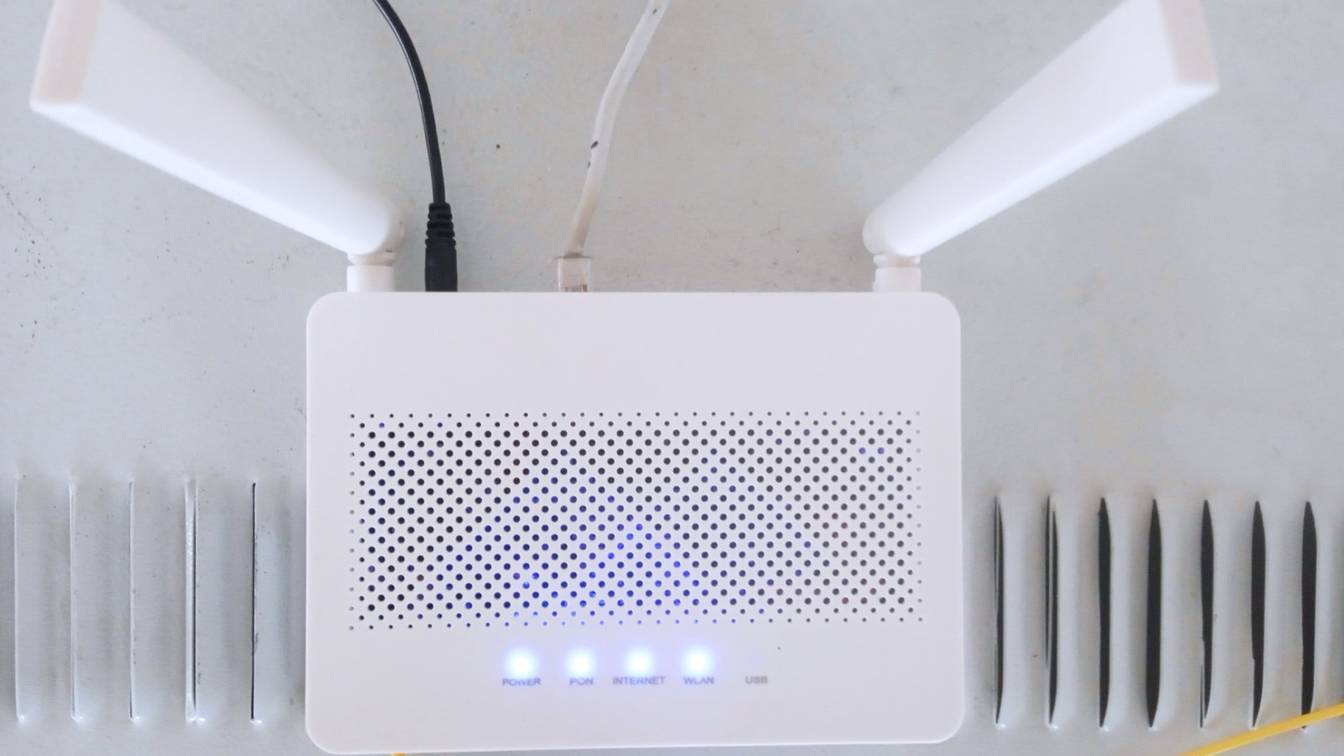

A Bambu Lab printer shows offline when Bambu Handy or Bambu Studio stops getting status messages from it, and in normal cloud mode those messages travel through Bambu Cloud. Restart the printer and check its network screen. Then turn LAN Only mode off, confirm the printer and both apps share one account and region, and check Bambu Lab’s status page before you change the router.
This page covers printers in normal cloud mode. If you run LAN Only mode on purpose, see Bambu Lab LAN mode not working. Menu names follow Bambu Lab’s wiki as of November 7, 2026.
Why does my Bambu Lab printer show offline?
Your Bambu Lab printer shows offline because Bambu Handy or Bambu Studio has stopped hearing from it through Bambu Cloud. The usual causes are LAN Only mode, a printer logged out or bound to another account or region, and a Bambu Cloud outage. Weak Wi-Fi does it too, and so does a router or firewall that blocks Bambu’s servers.
Bambu Studio reports a failed connection when it gets no status message from the printer for 30 seconds. What you see, including any HMS (Health Management System) error code on the printer, narrows down the cause:
| What you see | Likely cause | Where to look |
|---|---|---|
| The printer’s screen shows no network, or an IP address of 0.0.0.0 | The printer never joined Wi-Fi: a band it does not support, a wrong password, or a router out of addresses | Step 3, and Wi-Fi by model |
| Wi-Fi connected, but Bambu Handy and Bambu Studio both say offline | LAN Only or Developer Mode on, printer logged out, cloud ports or time sync blocked | Steps 4 to 9 |
| Every printer offline at once, or you cannot log in | Bambu Cloud outage | Step 1 |
| Only Bambu Handy says offline | Phone side: account, app permissions, VPN, date and time | Bambu Handy |
| The printer is missing from Bambu Studio’s list | Wrong account or login region, or Bambu Handy unbound it | Bambu Studio |
| “Time synchronization failed”, or the login QR code will not refresh | The printer cannot reach a time server | Step 9 |
| Online, then offline again every few minutes or hours | Weak signal, interference, address conflicts | Keeps going offline |
| HMS 0500-0200-0002-0001, “Failed to connect internet” | No internet path from the printer | Steps 3, 7 and 8 |
| HMS 0500-0400-0001-0002, “Failed to report task state” | Signal quality or bandwidth too low | Step 8 |
How do you fix a Bambu Lab printer that shows offline?
Restart the printer, then check its network screen for a Wi-Fi connection and an IP address. Turn LAN Only mode off and make sure the printer, Bambu Handy and Bambu Studio use one account and region. Then check status.bambulab.com. If it stays offline, test on a 2.4 GHz phone hotspot to tell a router problem from a printer fault.
How to get a Bambu Lab printer back online, step by step
- Check Bambu Lab’s status page. Open status.bambulab.com. It tracks Bambu Accounts and Binding separately from Cloud printing, Remote controlling and Live view. If one shows an incident, the problem is on Bambu’s side. Is Bambu Lab’s cloud down? covers printing from a microSD card or in LAN mode until it clears.
- Restart the printer. Switch off the printer, wait 20 seconds, then switch on the power. Bambu’s page for the “Failed to login device” error says a reboot makes the printer log in to the cloud again.
- Read the printer’s network screen. H2 series, P2S and X series printers show the current network under Settings > Wi-Fi. That page also runs a network test, which Bambu suggests to confirm the printer reaches its servers. A series printers show the IP and MAC address on the WLAN page under Settings; P1 printers have the same WLAN page. An IP address of 0.0.0.0 means the router gave the printer no address; Bambu’s P1 guide blames a full address pool and suggests a router restart.
- Turn LAN Only mode off. A printer in LAN Only mode never connects to Bambu Cloud, and Bambu says the Bambu Handy app “is not available” in that mode. The switch is under Settings > LAN Only on H2 series, P2S and X series printers; Settings > WLAN > LAN Only Mode on the P1P and P1S; and page 3 of Settings on A series printers. Developer Mode needs LAN Only mode on, so a printer in Developer Mode for third-party software also stays offline in the app.
- Match the account and region. Bambu says the printer, Bambu Handy and Bambu Studio must share one account; the printer shows its account under Settings > Account. In Bambu Studio, check the login region in Preferences: Bambu notes that an account registered in North America cannot log in with the region set to Chinese Mainland. Bambu’s notes for X1 firmware 01.07.00.00 add that the printer and the Bambu Handy account must use the same region. To change it, log out of the printer and bind it again.
- Bind the printer again. If the printer is missing from Bambu Handy’s Devices tab, someone may have deleted it there, which unbinds it in every app. Bambu’s fix for login failures is to unbind and bind again. Log out on the printer (Settings > Account > Log Out), then scan its QR code in Bambu Handy (Devices > Bind Printer) or enter its PIN code in Bambu Studio (Device tab > No Printer > Bind with pin code). On P1 and A1 printers the PIN stays valid for 230 seconds before it refreshes.
- Test on a phone hotspot. Connect the printer to a phone’s hotspot set to 2.4 GHz. Bambu notes that some phones must turn their own Wi-Fi off to share a hotspot. If the printer comes online there, Bambu blames the router’s settings, firewall or stability; go to step 8. If it stays offline on the hotspot too, skip to step 10.
- Fix the router. Bring the printer and router closer or clear the obstacles between them, then restart the router. Pick a less crowded 2.4 GHz channel; Bambu’s P1 guide says the printer supports channels 1 to 11. Turn off device or client isolation (common on guest networks) if the printer joins Wi-Fi but will not bind. Remove any firewall, port filtering or access control rule that blocks the cloud ports and domains.
- Fix time sync and DNS. If the screen says “Time synchronization failed” or the login QR code will not refresh, the printer cannot reach a time server. On Windows, run
w32tm /stripchart /computer:pool.ntp.org /dataonly /samples:5. Delay readings mean your network reaches the time server; errors mean the path is blocked. Bambu’s fix for errors is a public DNS server (the service that turns names like api.bambulab.com into addresses) set on the router: Google (8.8.8.8), Cloudflare (1.1.1.1) or Quad9 (9.9.9.9). The X1E can set its own DNS server on the printer. - Update everything, then send logs. Update the printer firmware, Bambu Studio and Bambu Handy; several firmware releases fixed Wi-Fi faults (listed below). If the printer still shows offline, open a support ticket with Bambu Lab and attach the printer logs.
Why is my Bambu printer offline when it is connected to Wi-Fi?
Wi-Fi only connects the printer to your router. To show online in Bambu Handy or Bambu Studio, it must also log in to Bambu Cloud. That takes the right account and region, a correct clock and open ports such as TCP 8883. LAN Only mode, a blocking firewall or DNS filter, or failed time sync leaves it offline.
Bambu Handy has no local path at all. Bambu’s quick start guide says Handy “must use the Internet to connect to the printer. LAN is only used for printer discovery.” A printer can sit on your Wi-Fi, reachable from your computer, and still show offline in the app.
In cloud mode, Bambu Lab’s network ports page (updated October 15, 2026) lists what the printer uses:
| Feature | Port | Type |
|---|---|---|
| Device binding | 3000 | TCP |
| Device discovery on your network | 1990, 2021 | SSDP multicast and broadcast |
| HTTP API: login, remote printing, firmware updates | 80, 443, 8080 | TCP |
| MQTT, the messaging protocol for remote control and printer status | 8883 | TCP |
| Remote video | 8000, 21047, 1000, 443, 8443, plus several UDP ranges | TCP and UDP |
| Time sync (NTP) | 123 | TCP and UDP |
The servers behind those ports are *.bambulab.com (for example api.bambulab.com), us.mqtt.bambulab.com and Amazon S3 (*.amazonaws.com) for global accounts. China Mainland accounts use *.bambulab.cn, cn.mqtt.bambulab.com and Alibaba Cloud storage (*.aliyuncs.com). A router rule or DNS filter that blocks any of them keeps the printer on Wi-Fi but offline.
In the router, Bambu says such rules usually sit under “Firewall”, “Port Filtering” or “Access Control”. On the computer, check the firewall, VPN or proxy software.
The printer also needs the correct time. When it cannot reach the time service, the QR code stops refreshing or the screen shows “Time synchronization failed”. Bambu says this is “generally due to poor network conditions.” Step 9 above has the fix.
A printer can join Wi-Fi and still fail to bind when the router keeps it from talking to your phone or computer. Bambu says this “commonly occurs on Guest networks where Device/Client Isolation is enabled.” From Command Prompt, run ping with the printer’s IP address. Time-outs, packet loss or high latency point to the router.
Why does a Bambu Lab printer keep going offline?
A Bambu Lab printer that keeps dropping offline usually has an unstable link to the router: weak 2.4 GHz signal from distance or obstacles, interference on a crowded channel, a loose Wi-Fi antenna or a router short of IP addresses. Bambu’s own error for this case blames signal quality or bandwidth, and its first fix is moving the printer closer.
- Signal. Bambu’s H2 and X1 network guides list distance and obstacles first, and their fix is to shorten the gap and restart the router. HMS 0500-0400-0001-0002, “Failed to report task state”, is Bambu’s warning for poor signal or bandwidth; it never appears in LAN Only mode.
- Interference. Change the router’s 2.4 GHz channel. Bambu’s P1 guide says the printer supports channels 1 to 11 and lists the router’s channel setting as a cause of a printer stuck at IP address 0.0.0.0.
- Antenna. Bambu says to check that the printer’s Wi-Fi antenna connector is secure and to reseat it a few times. If the signal stays weak, send Bambu the printer logs.
- IP addresses. Weak signal can drop the DHCP packets that give the printer its address. Bambu’s P1 guide adds that a router crowded with devices, some holding static or stale addresses, can run dry or create conflicts. A DHCP reservation in the router keeps the printer on one address.
- Many printers on one access point. For print farms, Bambu advises no more than 30 printers on a single 2.4 GHz hotspot.
- Bambu’s side. Some drops are cloud-wide. Bambu Lab reported waves of abnormal requests from unofficial clients between June 2024 and January 2025 that, taken together, disrupted logins for about an hour. If several printers drop at the same moment, check the status page first.
- Old firmware. X1 firmware 01.08.00.00 (May 2024) “Optimized wifi connection stability” and added support for 802.11w (protected management frames) networks. P1 firmware 01.05.00.00 (January 2024) fixed Wi-Fi that “couldn’t connect under AES-GCMP encryption”. P2S firmware 01.02.00.00 (April 2026) optimized “network, and connectivity stability”.
Bambu Handy says the printer is offline
Bambu Handy reaches printers only through Bambu Cloud, so it shows a printer as offline whenever the cloud link is down, including any printer in LAN Only mode. If only Handy shows the printer as offline, check the phone:
- Account. Log in to Handy with the printer’s account, shown on the printer under Settings > Account. A printer deleted from Handy’s Devices tab is unbound and must be bound again (step 6).
- Network permission. On an iPhone, open Settings > Bambu Handy > Wireless Data and choose WLAN & Cellular Data.
- VPN and security apps. Bambu says to turn off VPNs and third-party security software, then reconnect.
- App version. Update Bambu Handy from Me > Settings > About the App > Check for Updates.
- Date and time. Set the phone’s date and time to automatic (Settings > General > Date & Time on an iPhone).
- Last resort on iPhone. Update iOS, then reset network settings under Settings > General > Transfer or Reset iPhone > Reset > Reset Network Settings.
If Handy says it “cannot connect to server” or loads nothing, Bambu names a cloud service issue as the first cause; check the status page. For app control without the cloud, see Bambu Handy and LAN mode.
Bambu Studio says the printer is offline
In Bambu Studio’s Device tab, the icon before the printer’s name shows whether it is online. When the printer disconnects, the message tells you which link failed:
- “Failed to connect to the printer.” Bambu Studio received no status message from the printer for 30 seconds. Check the printer’s network connection and look for MQTT errors on its home screen. Bambu also says to check whether Bambu Handy has unbound the printer.
- “Failed to connect to the server.” Bambu Studio cannot reach Bambu Cloud from your computer. Check the computer’s network connection and firewall.
- The printer is not in the “My Device” list. Check that you are logged in to Bambu Studio with the correct region in Preferences. Then scan the QR code on the printer’s screen to log it in to the same account.
- The Device page is unavailable. Bambu Studio needs the Bambu Network Plugin for remote printing and monitoring.
Binding errors in Bambu Studio come with a four-digit code:
| Code | Bambu’s meaning | What to check |
|---|---|---|
| -1010, -1020, -1070, -1080, -1090 | Connection issues with the printer | The network the printer uses and the one Bambu Studio uses |
| -1030, -1040, -1050, -1060 | Connection issues with the cloud server | Bambu’s service status, your firewall, and the printer’s distance from the router |
To use Bambu Studio with no internet at all, see Bambu Studio offline.
Bambu A1, P1S, P2S, X1C or H2D offline: Wi-Fi by model
A printer that cannot see your network may be looking for the wrong band. The A1 and A1 mini, the P1 series, the X1C and the X1E list only 2.4 GHz Wi-Fi. The H2D, H2S, P2S and X2D also support 5 GHz.
| Printer | Wi-Fi band Bambu lists | Notes from Bambu Lab |
|---|---|---|
| A1 | 2.4 GHz (IEEE 802.11 b/g/n) | Wi-Fi under Settings > WLAN. A user_wifi.cfg file on the microSD card joins hidden networks, or networks with password characters the screen cannot enter. |
| A1 mini | 2.4 GHz (IEEE 802.11 b/g/n) | Same as the A1 |
| H2D | 2.4 GHz and 5 GHz | Settings > Wi-Fi, with a network test |
| H2S | 2.4 GHz and 5 GHz | Same menu as the H2D |
| P1P, P1S | 2.4 GHz | Wi-Fi set from Bambu Handy over Bluetooth, or from a user_wifi.cfg file on the microSD card. Channels 1 to 11. The P1P takes network names (SSIDs) of up to 31 bytes. |
| P2S | 2.4 GHz and 5 GHz | No wired network port. Firmware 01.02.00.00 improved network stability. |
| X1C | 2.4 GHz (802.11b/g/n) | No Ethernet. Firmware 01.08.00.00 improved Wi-Fi stability. |
| X1E | 2.4 GHz, plus 100 Mbps Ethernet | Custom IP address and DNS settings on the printer |
| X2D | 2.4 GHz and 5 GHz | No wired network port |
Sources
- Bambu Lab Wiki, Failed to Connect Printer (updated June 3, 2026) (accessed November 7, 2026)
- Bambu Lab Wiki, Bambu Studio login and binding printer troubleshooting (accessed November 7, 2026)
- Bambu Lab Wiki, Printer Network Ports (updated October 15, 2026) (accessed November 7, 2026)
- Bambu Lab Wiki, Wi-Fi / Network connection guide for H2 Series/P2S/X Series (accessed November 7, 2026)
- Bambu Lab Wiki, Wi-Fi / Network connection guide for X1/X1C 3D printers (accessed November 7, 2026)
- Bambu Lab Wiki, P1 series WIFI/BT/LIVEVIEW troubleshooting (accessed November 7, 2026)
- Bambu Lab Wiki, P1 Series Printer Network Binding Troubleshooting Guide (accessed November 7, 2026)
- Bambu Lab Wiki, P1/A1 Series Micro SD Card Network Configuration Guide (accessed November 7, 2026)
- Bambu Lab Wiki, Bambu Handy Quick Start Guide (updated August 25, 2026) (accessed November 7, 2026)
- Bambu Lab Wiki, Bambu Handy cannot connect to the network when using iOS / iPhone (accessed November 7, 2026)
- Bambu Lab Wiki, HMS_0500-0500-0001-0007: MQTT Command verification failed (Bambu Handy update steps) (accessed November 7, 2026)
- Bambu Lab Wiki, Bambu Lab Printer Account Binding Guide (accessed November 7, 2026)
- Bambu Lab Wiki, Bambu Lab Printer Account Unbinding Guide (accessed November 7, 2026)
- Bambu Lab Wiki, Remote Control & Monitoring (Bambu Studio) (accessed November 7, 2026)
- Bambu Lab Wiki, Bambu Studio Quick Start Guide (accessed November 7, 2026)
- Bambu Lab Wiki, How to enable LAN Mode on Bambu Lab printers (accessed November 7, 2026)
- Bambu Lab Wiki, How to enable Developer Mode on Bambu Lab printers (accessed November 7, 2026)
- Bambu Lab Wiki, HMS_0500-0200-0002-0001: Failed to connect internet (accessed November 7, 2026)
- Bambu Lab Wiki, HMS_0500-0200-0002-0002: Failed to login device (accessed November 7, 2026)
- Bambu Lab Wiki, HMS_0500-0400-0001-0002: Failed to report task state (accessed November 7, 2026)
- Bambu Lab Wiki, HMS_0500-0200-0002-0008: Time synchronization failed (accessed November 7, 2026)
- Bambu Lab Wiki, H2D Screen Operation Guide (accessed November 7, 2026)
- Bambu Lab Wiki, A1 Series Printers Screen Operation Guide (accessed November 7, 2026)
- Bambu Lab Wiki, Bambu Farm Manager FAQ (accessed November 7, 2026)
- Bambu Lab Wiki, Summary of Security Incident Responses and Abnormal Cloud Traffic (accessed November 7, 2026)
- Bambu Lab Status (accessed November 7, 2026)
- Bambu Lab Wiki, X1/X1C Firmware Release History (accessed November 7, 2026)
- Bambu Lab Wiki, P1P/P1S and AMS Firmware Release History (accessed November 7, 2026)
- Bambu Lab Wiki, P2S firmware release history (accessed November 7, 2026)
- Bambu Lab Wiki, P2S FAQ (accessed November 7, 2026)
- Bambu Lab Wiki, H2S FAQs (accessed November 7, 2026)
- Bambu Lab Wiki, X2D FAQs (accessed November 7, 2026)
- Bambu Lab Wiki, X1E FAQ (accessed November 7, 2026)
- Bambu Lab Wiki, X1E Network Connection Guide (accessed November 7, 2026)
- Bambu Lab, A1 Technical Specification (PDF) (accessed November 7, 2026)
- Bambu Lab, A1 mini Technical Data Sheet (PDF, reseller-hosted copy) (accessed November 7, 2026)
- Bambu Lab, H2D Spec Sheet (PDF, reseller-hosted copy) (accessed November 7, 2026)
- Bambu Lab, Quick Start Guide for X1-Carbon Combo (PDF) (accessed November 7, 2026)