Guide
Can the Bambu Lab P1S print TPU?
Yes. The Bambu Lab P1S prints Bambu's TPU for AMS, TPU 95A HF, TPU 90A and TPU 85A on its stock hotend and extruder. Only the 68D TPU for AMS feeds from an AMS. The softer grades go in by hand from an external spool, 85A needs a 0.6 or 0.8 mm nozzle, and Bambu Lab supports nothing softer than 85A.
Published Last verified 7 min read
In this section: Bambu Lab(24)
On this page (6)
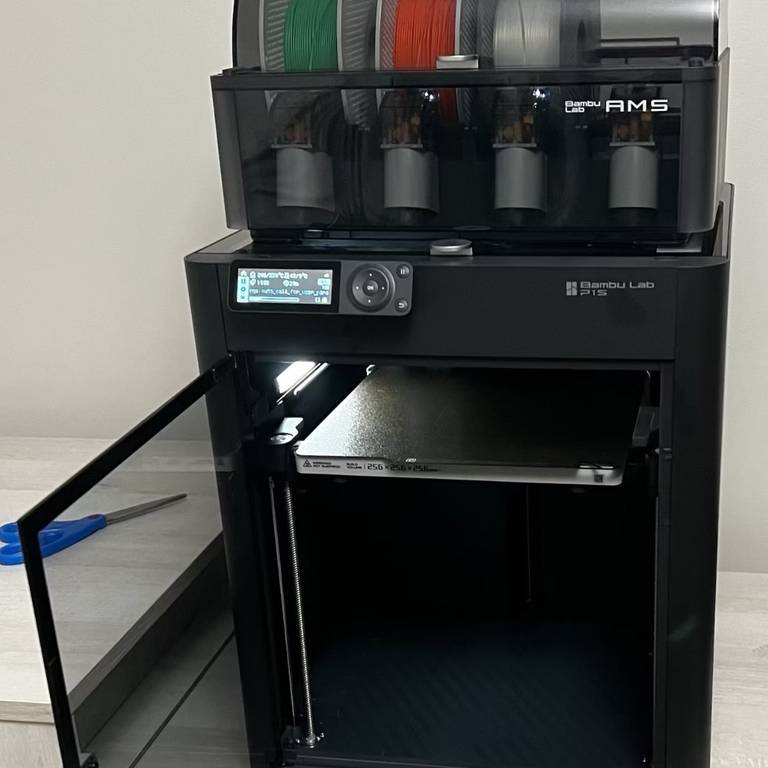

Yes. The Bambu Lab P1S prints TPU (thermoplastic polyurethane, a flexible filament) down to Shore 85A on its stock hotend and extruder. Bambu’s TPU for AMS (68D) feeds from an AMS (Bambu Lab’s Automatic Material System) like PLA, and the softer TPU 95A HF, 90A and 85A feed by hand from an external spool.
Can the Bambu Lab P1S print TPU?
Yes. Bambu Lab rates TPU “Ideal” on the P1S spec sheet, and its P1S wiki calls the stock stainless steel hotend and extruder well suited to TPU. Bambu Lab supports all four of its TPU grades on the P1S, on three conditions: the right nozzle size, the right feed path and nothing softer than 85A.
- Nozzle size. Bambu Lab marks every TPU grade incompatible with a 0.2 mm nozzle. The stock 0.4 mm nozzle prints every grade except TPU 85A, which needs a 0.6 or 0.8 mm hotend.
- Feed path. Only TPU for AMS feeds from an AMS; the softer grades need an external spool. Which filaments work in a Bambu Lab AMS covers the AMS models one by one.
- Hardness floor. Bambu Lab’s TPU guide says its printers “do not currently support printing with TPU filaments rated below 85A hardness”. Softer TPU bends during feeding and buckles or tangles.
Which TPU hardness can the Bambu Lab P1S print?
The Bambu Lab P1S prints TPU from Shore 68D down to 85A. Bambu Lab supports its TPU for AMS (68D), TPU 95A HF, TPU 90A and TPU 85A on the P series, with 85A limited to 0.6 or 0.8 mm nozzles. TPU softer than 85A is unsupported, and Bambu Lab publishes no TPE (thermoplastic elastomer) settings.
Rows run from hardest to softest. Shore D is the harder scale, and on the A scale a lower number means softer. The preset column comes from Bambu Studio’s P1S filament presets on GitHub: max volumetric speed (how much plastic the hotend may melt per second) and nozzle temperature. Data-sheet speeds are Bambu Lab’s recommended print speeds.
| Filament | Nozzle sizes on a P1S | Feed path on a P1S | Bambu Studio preset (max volumetric speed, nozzle) | Bambu Lab’s guidance |
|---|---|---|---|---|
| Bambu TPU for AMS (68D) | 0.4, 0.6, 0.8 mm | Any AMS slot, or the external spool | 18 mm³/s, 230 °C | Feeds through every AMS model; data sheet speed under 250 mm/s |
| Bambu TPU 95A HF | 0.4, 0.6, 0.8 mm | External spool through the rear PTFE tube, from a dry box or an AMS HT’s TPU outlet | 12 mm³/s, 230 °C | Not for AMS feeding; data sheet speed under 200 mm/s |
| Bambu TPU 90A | 0.4, 0.6, 0.8 mm | Dry box above the printer, PTFE tube run straight to the toolhead | 2.8 mm³/s, 225 °C | Keep the default volumetric speed limit; do not raise print speed |
| Bambu TPU 85A | 0.6, 0.8 mm only | From above, straight into the extruder with the top glass off; no PTFE tube | 2.2 mm³/s, 225 °C | Same as 90A; Bambu Studio has no 85A preset for the P1S 0.4 mm nozzle |
| TPU below 85A (83A, 80A and softer) | None | None | No preset | Not supported on Bambu Lab printers |
| TPE | Not stated | Not the AMS | No preset | No TPE settings published; keep it out of the AMS |
TPU 90A prints far slower than the two harder grades: Bambu Lab printed its data-sheet test pieces at 130 mm/s in TPU for AMS, 140 mm/s in TPU 95A HF and 34 mm/s in TPU 90A.
Bambu Lab’s filament guide marks TPU 85A compatible with a 0.4 mm nozzle. Its TPU guide, its P series TPU guide and the Bambu Studio presets all call for 0.6 or 0.8 mm, so fit one of those nozzle sizes.
Can the P1S print TPE or other brands’ flexible filament?
Yes for other brands’ TPU, down to the same 85A floor. Bambu Studio lists a “Generic TPU” preset for the P1S, limited to 3.2 mm³/s, for TPU too soft for the AMS. Its “Generic TPU for AMS” preset (10.5 mm³/s) is only for TPU of 55D or harder. The preset’s own note rules it out for soft TPU.
For TPE, Bambu Lab publishes no P1S preset or settings. Its AMS notes say to keep TPE out of the AMS, along with damp PVA (polyvinyl alcohol, a water-soluble support filament), because both can jam in the feed tube. Check the Shore hardness on a TPE spool: anything softer than 85A is below what Bambu Lab supports.
How do you print TPU on a P1S that has an AMS?
Load Bambu TPU for AMS, or another TPU of 55D or harder, into an AMS slot and print it like any other filament. For TPU 95A HF, 90A or 85A, unload the AMS and feed the TPU from a raised dry box instead. Then pick the external spool in Bambu Studio and turn off Flow Dynamics Calibration.
Bambu Lab’s P1 wiki says the AMS works on the P1 series as it does on the X1, so these steps follow its X1 spool-holder guide and its P series TPU guide:
- Prepare the nozzle. Fit a new nozzle, or clean the current one with a cold pull (pulling out cooled filament so debris comes with it). If it has run carbon- or glass-fiber filament, Bambu Lab says to cold-pull it several times: leftover fibers add feeding resistance. For TPU 85A, fit a 0.6 or 0.8 mm hotend.
- Unload the AMS filament. On the printer screen, open the AMS page, select the slot in use and press Unload so the filament goes back to the AMS.
- Raise the spool. Put the TPU in a sealed dry box with its side outlet open, or in an AMS HT fed from its rear TPU outlet. Set it higher than the printer so slack filament cannot catch on the bed or nozzle.
- Open the feed path for your TPU. For TPU 95A HF, press the coupler collar where the PTFE (polytetrafluoroethylene) tube from the AMS enters the printer and pull the tube out. Push the TPU into the printer’s rear PTFE tube until it reaches the extruder. For TPU 90A, disconnect the PTFE tube at the toolhead, connect it to the dry box outlet and push the TPU through by hand. For TPU 85A, lift off the top glass cover and unplug the PTFE tube from the toolhead. Secure the tube out of the way and feed the TPU from above, straight into the extruder.
- Load slowly at 250 °C. Heat the nozzle to 250 °C, push the TPU end into the extruder and press Load or the extrude button in single, slow presses until it comes out evenly. For TPU 90A, reconnect the PTFE tube to the toolhead once it extrudes.
- Slice with the matching preset. In Bambu Studio, choose the Bambu Lab P1S printer preset for your nozzle size and the matching Bambu TPU filament preset, and keep its volumetric speed limit. For TPU 90A, Bambu Lab suggests placing the model at the center front of the bed to cut friction in the PTFE tube.
- Send it to the external spool. In the Send print job window, pick the spool under “External” instead of an AMS slot and set Flow Dynamics Calibration to Off. If the external spool’s filament type setting differs from the sliced filament, Bambu Studio warns you before sending, so set the external spool to the TPU you sliced.
- Unload by hand afterwards. Heat the nozzle to 250 °C, press Unload slowly and pull the TPU out as the gears reverse. The P series cannot cut and unload TPU 85A or 90A on its own. Reconnect the PTFE tubes before the next AMS print.
TPU for AMS skips the external-spool steps. Because it loads and unloads from an AMS slot, it can share a multi-color print with other AMS filaments.
Bambu Lab’s TPU Feed Assist Module also fits the P1S. It is an add-on extruder you assemble into a housing you print yourself. It handles TPU from 85A to 95A HF and feeds from an external spool holder or an AMS HT’s TPU outlet, never through AMS automatic loading.
Which plate and bed temperature does TPU need on a P1S?
Use the Textured PEI Plate or the Smooth PEI Plate at 35 to 45 °C, or the Engineering Plate at 30 to 35 °C. Bambu Lab’s filament guide rates the Cool Plate “Not recommended” for TPU. Keep the bed at 45 °C or below: above that, the guide recommends opening the front door or lifting off the top glass, because chamber heat can soften TPU inside the extruder.
Why does TPU jam or string on a P1S?
Soft TPU jams because it bends under the extruder’s push. Bambu Lab’s P series guide names three common problems: under-extrusion, filament bending into the extruder gears and stringing. A TPU clog in the gears means taking the extruder apart to pull the filament out.
- Jams in the extruder. Press the load button one click at a time. Bambu Lab warns that clicking continuously can catch TPU in the gears and clog the extruder. Check that the raised spool turns freely and that the PTFE tube has no sharp bends.
- Under-extrusion. Lower the print speed, check the feed path for resistance, dry the filament and cold-pull the nozzle.
- Stringing. Set the print sequence to “By object” so the nozzle travels less between parts. Lower the nozzle temperature by about 5 °C and the max volumetric speed by 0.4 mm³/s. If it still oozes, add 0.2 mm of retraction.
- Wet filament. Damp TPU strings, bubbles and bonds poorly between layers. Bambu Lab’s data sheets give 70 °C for 8 h in a forced-air oven, then storage below 20% relative humidity. Drying filament on Bambu Lab printers covers the other drying methods.
For the rest of what the P1S prints, from PLA to ABS and nylon, see what filaments the P1S can print.
Sources
- Bambu Lab Wiki, TPU printing guide (accessed October 24, 2026)
- Bambu Lab Wiki, TPU 85A/90A printing guide for P series (accessed October 24, 2026)
- Bambu Lab Wiki, Filament guide: printer, nozzle, AMS, build plate, glue compatibility and required parameters (accessed October 24, 2026)
- Bambu Lab Wiki, Notes for AMS (accessed October 24, 2026)
- Bambu Lab Wiki, Connect AMS to the P1 series (accessed October 24, 2026)
- Bambu Lab Wiki, Switch the filament from AMS to spool holder (X1) (accessed October 24, 2026)
- Bambu Lab Wiki, Loading filament (P1 series) (accessed October 24, 2026)
- Bambu Lab Wiki, P1S hardened steel extruder and hotend upgrade (accessed October 24, 2026)
- Bambu Lab Wiki, TPU Feed Assist Module (accessed October 24, 2026)
- Bambu Lab, P1S tech specs (PDF) (accessed October 24, 2026)
- Bambu TPU for AMS technical data sheet (accessed October 24, 2026)
- Bambu TPU 95A HF technical data sheet (accessed October 24, 2026)
- Bambu TPU 90A technical data sheet (accessed October 24, 2026)
- Bambu Studio on GitHub, filament profile Bambu TPU for AMS @BBL X1C (covers P1S 0.4 and 0.8 mm) (accessed October 24, 2026)
- Bambu Studio on GitHub, filament profile Bambu TPU for AMS @BBL X1C 0.6 nozzle (covers P1S 0.6 mm) (accessed October 24, 2026)
- Bambu Studio on GitHub, filament profile Bambu TPU 95A HF @BBL P1S (accessed October 24, 2026)
- Bambu Studio on GitHub, filament profile Bambu TPU 90A @BBL X1C (covers P1S) (accessed October 24, 2026)
- Bambu Studio on GitHub, filament profile Bambu TPU 85A @BBL X1C (covers P1S 0.6 and 0.8 mm) (accessed October 24, 2026)
- Bambu Studio on GitHub, filament profile Generic TPU for AMS @BBL X1C (covers P1S) (accessed October 24, 2026)
- Bambu Studio on GitHub, filament profile Generic TPU for AMS @base (accessed October 24, 2026)
- Bambu Studio on GitHub, filament profile Generic TPU (covers P1S) (accessed October 24, 2026)
- Bambu Studio on GitHub, filament profile Generic TPU @base (accessed October 24, 2026)
- Bambu Studio on GitHub, filament profile fdm_filament_tpu (accessed October 24, 2026)
- Bambu Studio on GitHub, send-print dialog source (SelectMachine.cpp) (accessed October 24, 2026)
- Bambu Studio on GitHub, filament-to-slot mapping source (AmsMappingPopup.cpp) (accessed October 24, 2026)